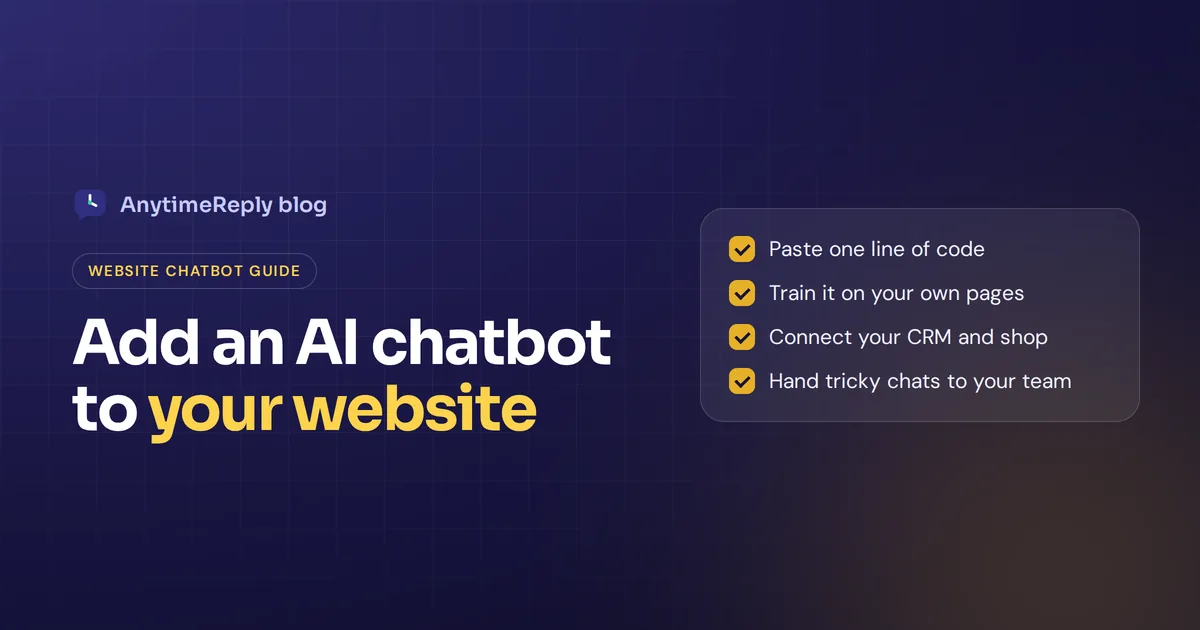
Chatbot integration with a website sounds like a developer job. Most of the time it isn't. With a modern chatbot platform you copy one line of embed code, paste it into your site, and a small bubble appears in the corner. The part that takes real thought is everything around that line: what the chatbot knows, what it is allowed to do, and when it hands a customer to a person.
This guide walks through both. First the quick technical options (code snippet, CMS plugin, Shopify, inline widget, API). Then the setup work that decides whether your new AI chatbot actually helps customers or just annoys them.
We build a chatbot platform ourselves, so we'll use AnytimeReply in a few examples. The steps work the same way with most tools.
What AI chatbot integration with a website actually means
Integrating a chatbot means connecting a conversational assistant to your website so visitors can talk to it while they browse. In practice it has three layers:
- The chat widget. The chat window your visitors see. It loads from a small script and sits on top of your website pages.
- The brain. The AI model plus the knowledge it answers from: your pages, help articles, PDFs and product data. Modern tools use generative AI and natural language understanding, so visitors can type the way they talk.
- The connections. Links to the tools behind your business, such as your shop, calendar, CRM and the inbox your team works from.
Adding the widget takes minutes. The brain and the connections are where you spend your time, and they matter much more for the customer experience.
A quick note on terms. You'll see the rule-based bot (it follows buttons and scripts) and AI chatbots (they understand free text). When people talk about adding a chatbot for your website today, they usually mean the AI kind. Don't confuse this with "general or strong AI" from science fiction: a website chatbot is a narrow tool trained for one job.
Why businesses add chatbots to their websites
Adding an AI chatbot to your website is mostly about speed. Picture a small online store. A visitor finds a jacket at 11 pm and wants to know if it ships to Canada. The contact form says "we reply within 24 hours". By morning the visitor has bought somewhere else.
An AI chatbot for your website fixes that gap. Here is what a good integration gives you:
- Instant customer support, 24/7. Shipping, returns, sizes, prices and opening hours answered in seconds, at any hour.
- Fewer repetitive questions in your inbox. The same ten customer queries stop filling your email.
- Lead generation and sales. The chatbot can qualify leads, collect an email, give product recommendations or book a call while the visitor is still interested.
- Replies in the customer's language. A conversational AI can answer in the language the visitor writes in, which is hard to staff with people.
- Better customer engagement and data. Every conversation shows you what customers really ask, and where your website leaves them confused.
The honest downside: a chatbot is only as good as what it learns from. If your shipping page is out of date, the bot will repeat the old info. We'll come back to that.
How to add a chatbot to your website: snippet, WordPress or API
There are five common ways to integrate a chatbot. Which one you use depends on how your site is built and how much control you want.
| Method | Best for | Skill needed | Time |
|---|---|---|---|
| JavaScript snippet | Any website, custom HTML, React, Webflow, Wix and similar builders | Copy and paste | 5 minutes |
| CMS plugin | WordPress sites | Install a plugin | 5 minutes |
| Ecommerce app or theme setting | Shopify and other online stores | Theme settings | 5 to 10 minutes |
| Inline chat widget or hosted page | Help pages, contact pages, docs | Copy and paste | 10 minutes |
| API | Your own interface in a website or application | A developer | Hours to days |
1. Paste a JavaScript snippet
This is the standard way. Your chatbot platform gives you a short script tag. You paste it into your site's HTML, usually just before the closing </body> tag, or in the "custom code" or "footer code" box that most website builders have. It looks something like this:
<script src="https://your-chatbot-provider.com/widget.js" data-agent="YOUR_AGENT_ID" async></script>That is the whole integration on the website side. The script loads the widget on every page where the code appears. Because it loads with async, it doesn't hold up the rest of your page, so the user experience stays fast.
Tip: paste it in a site-wide footer or layout file, not on one page, unless you only want the chatbot on certain pages.
2. Use a WordPress plugin
If your site runs on WordPress, a plugin is the easiest route. Install it, connect your account, and the bubble shows up across your site. No theme files to edit, and theme updates won't remove the code. AnytimeReply has its own plugin, and the steps are in our WordPress guide.
3. Add it to Shopify or another online store
Store platforms usually let you add a widget through an app or a theme setting. For Shopify, AnytimeReply works with your theme, and it can also learn your Shopify products with price and stock, so the chatbot shows product cards instead of plain text. See the Shopify setup guide.
4. Inline widget or a hosted help page
Not every website bot needs to float in the corner. An inline widget places the conversation right inside a page, for example on your contact page or in your docs. A hosted help page gives you a full-page assistant with its own link that you can share in emails, on social media or in your Instagram bio.
5. Connect through APIs
If you want your own design inside a website or app, or an internal tool, use the platform's APIs. You send the user input to the API and show the reply in your own interface. This is real web development work, and you take on building and maintaining the interface yourself. For most businesses the ready-made widget is the better choice.
Step-by-step: AI chatbot integration for websites
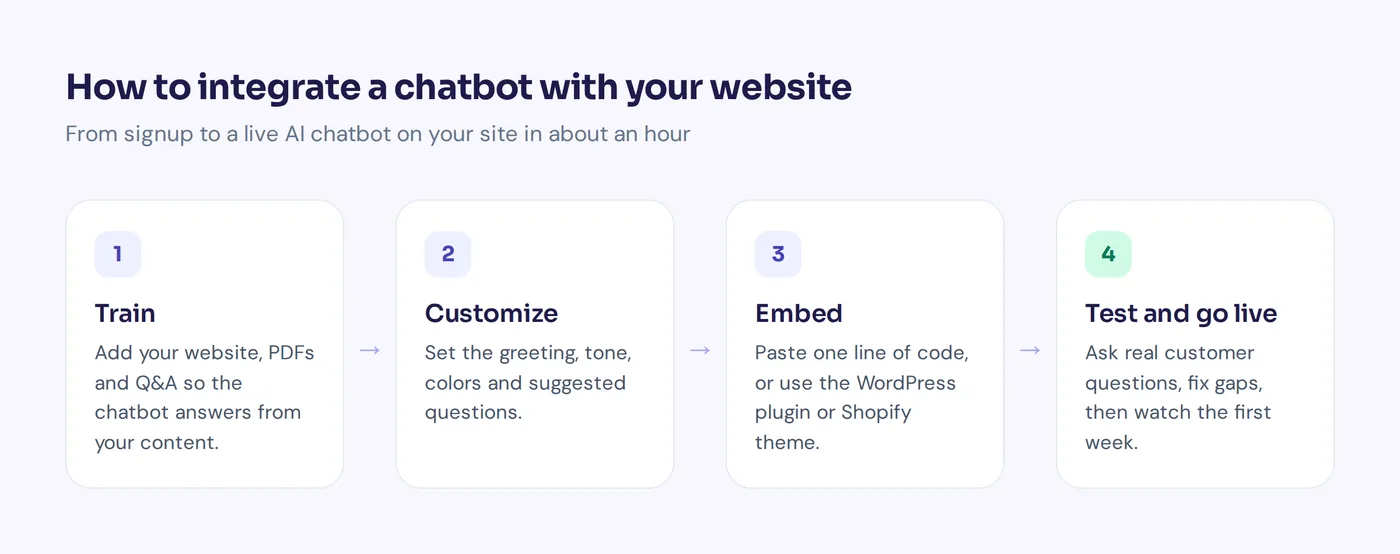
Here is the full process for putting a chatbot on a website, from zero to live. It takes about an hour if your pages are in decent shape.
- Write down your goal. Answer customer questions? Lead generation? Booking appointments? Pick one main job first. It decides your greeting, your conversation design and what you measure.
- Collect your top questions. Look through old emails, chats and DMs. Write down the 20 questions you get most. These are the questions your chatbot must answer well on day one.
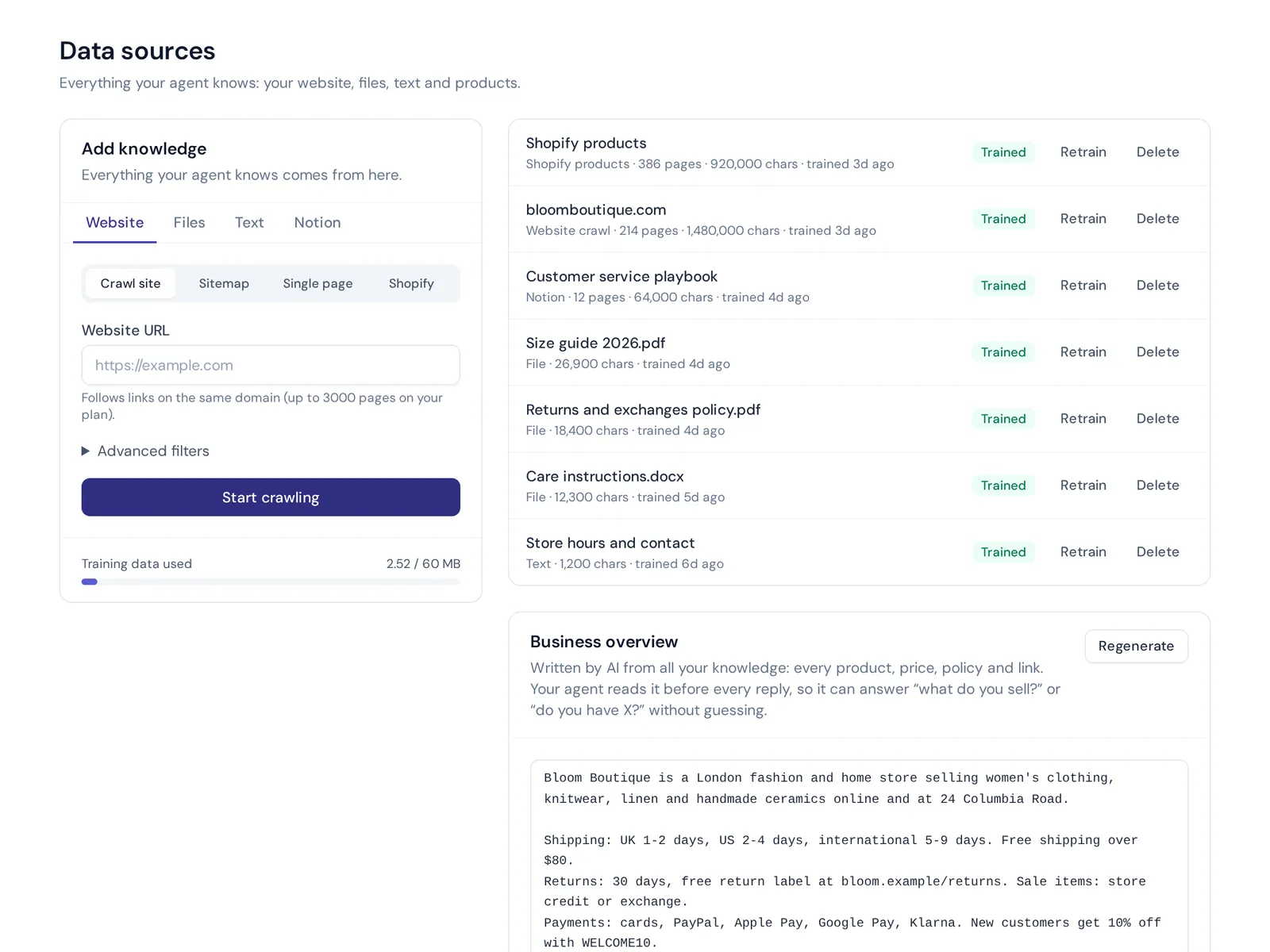
- Train it on your content. Add your website URL or sitemap so the platform can crawl your pages. Upload PDFs and docs, such as your returns policy or price list. Add short Q&A pairs for anything your website doesn't explain clearly.
- Configure the tone and rules. Give the assistant a name, a greeting and simple instructions: "Be friendly and short. Never promise refunds. If someone asks for a person, hand over to the team."
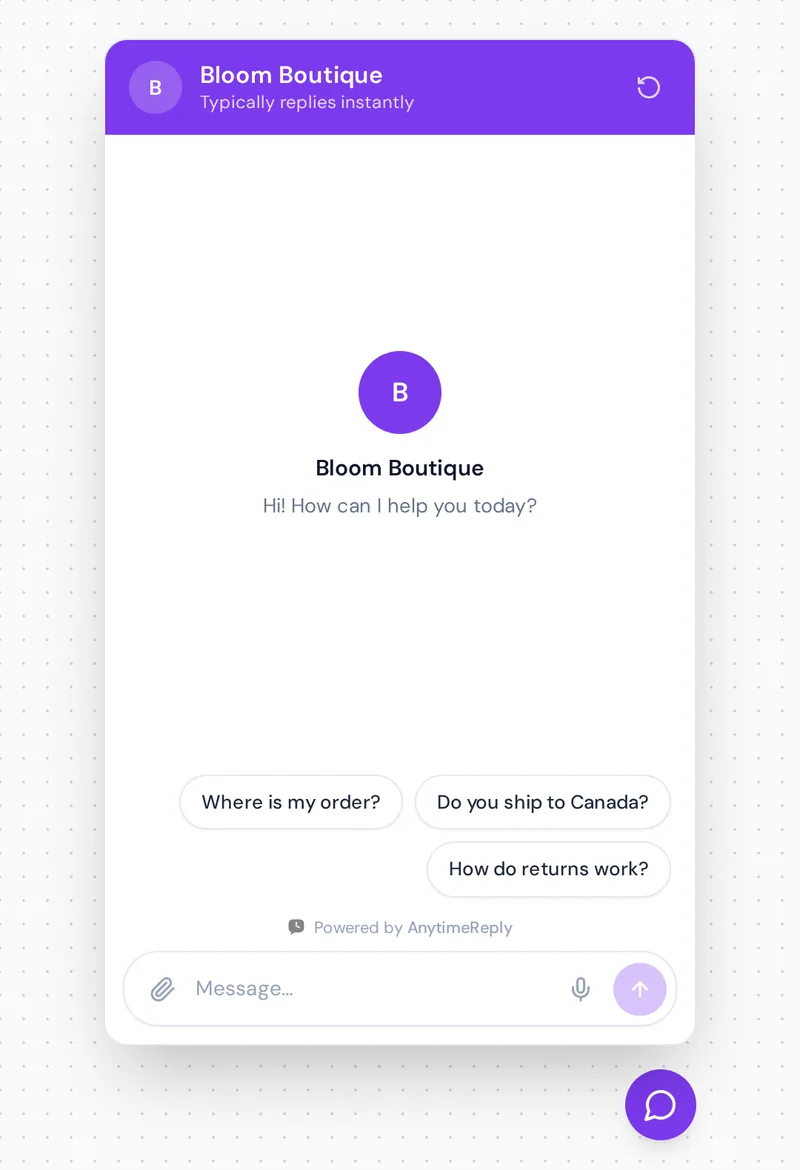
- Customize the widget. Match your brand color, add your logo, pick the position on screen and write two or three suggested questions visitors can tap.
- Install it. Paste the script, install the plugin or flip the theme setting, depending on your site.
- Test like a customer. Ask your top 20 questions. Then ask weird ones, rude ones and ones in other languages. Fix any wrong answers by updating your content or adding a Q&A.
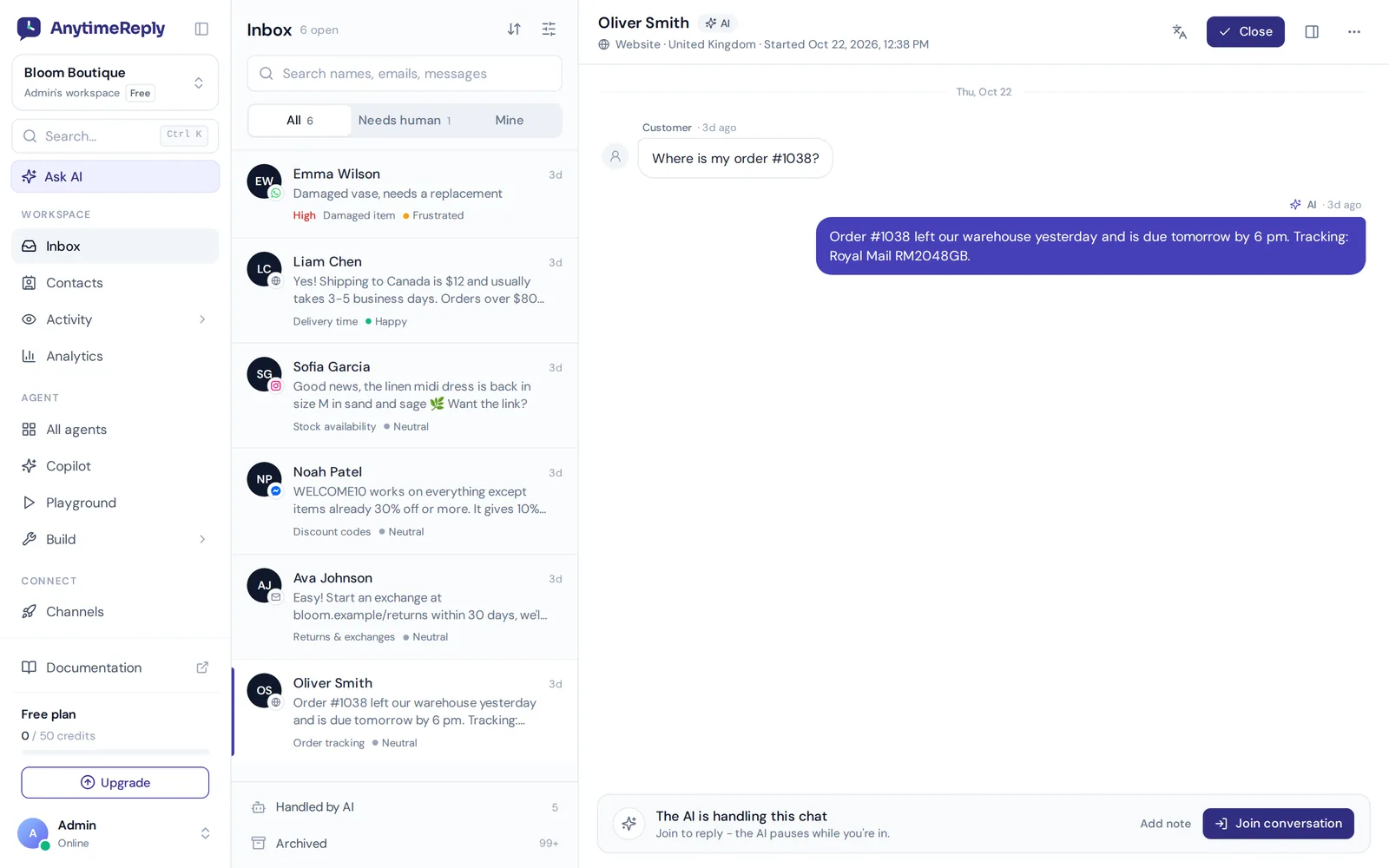
- Connect your team. Decide who gets the conversations the AI can't handle and make sure they see them in a shared inbox.
- Go live and watch. Read real conversations every day for the first week. You'll spot gaps fast. Treat it as ongoing development, not a one-time job.
Custom AI chatbot development or a ready-made tool?
Can you add one without coding? Yes. For most sites, chatbot website integration is copy and paste. You only need a developer in two cases: you want your own interface built on the API, or your site is built in a way that blocks custom scripts.
The same goes for building the chatbot itself. Custom chatbot development from scratch (picking a model, building retrieval, a dashboard, handoff, spam protection) can take months. A ready-made tool gives you all of that on day one. Build a custom AI chatbot only if you have unusual needs and engineers to maintain it.
Get the knowledge right before you go live
This is the step people rush, and it is the one that matters most. A chatbot that answers from bad content gives bad answers, politely and at scale.
- Fix your website first. If the shipping page says 3 to 5 days but you now ship in 7, change the page. The chatbot believes your website.
- Keep pricing and product pages clear. These are the pages customers ask about most. AnytimeReply reads product and pricing pages before blog posts for that reason.
- Write Q&A for tricky answers. Things like "Can I change my order after paying?" deserve one clear, approved answer. In AnytimeReply, a Q&A you write always wins over other sources.
- Tell it what not to answer. Legal advice, medical questions, discounts you don't offer. A good chatbot says "I don't know, let me get the team" instead of guessing.
- Retrain when things change. New products, new prices, a holiday schedule. Update the content and retrain, or use a platform that retrains automatically.
- Update your privacy policy. Mention that visitors may talk to an AI and how conversation data is stored. If you serve visitors in the EU, check what GDPR asks of you.
Integrate the chatbot with your CRM, WhatsApp and other tools
Once the widget is live, connect the chatbot to the systems behind it. A chatbot that only answers questions is useful. One that can look up an order or book a meeting is a lot more useful. This is the second half of a good integration.
Common connections:
- CRM integration: HubSpot or Airtable, so leads from the conversation land where your sales team works.
- Ecommerce: Shopify or WooCommerce, so the chatbot can check order status for a verified customer.
- Booking: Cal.com or Calendly, so visitors can book a demo without leaving the page.
- Payments and shipping: Stripe for subscriptions, AfterShip for tracking.
- Helpdesk: ticket creation in your support tool when a person needs to follow up.
- Messaging: WhatsApp, Messenger and Instagram, so the same bot answers there too.
- Automation: Zapier, Make, n8n or webhooks for anything else.
One warning. Any action that touches a customer's account should only run for verified customers, ideally with a confirmation step. You don't want a stranger typing someone else's order number and getting their address.
Plan the handoff from AI chatbots to customer support agents
No chatbot answers everything, and it shouldn't try. The best website chatbots know when to step back. Set clear rules for when live agents take over the chat:
- The customer asks for a human.
- The customer sounds angry or upset.
- The AI isn't confident in its answer.
- Money, refunds or account changes are involved.
When the handoff happens, your team should get the full conversation and a short summary, and keep going in live chat. The customer should never have to repeat the problem. If nobody is online, the chatbot should say when the team will reply and collect an email, instead of pretending someone is coming.
Best practices for a chatbot on your website
- Say it is an AI. "Hi, I'm the AI assistant for Bloom. I can help with orders, sizes and returns." Customers don't like finding out later.
- Use suggested questions. Two or three buttons like "Where is my order?" help people start.
- Be careful with popups. A friendly message after 30 seconds on a product page can help. A window that jumps open on every page load hurts customer satisfaction.
- Check it on mobile. Most visitors are on phones. Make sure the bubble doesn't cover your "Add to cart" button.
- Keep answers short. Two or three sentences, then offer more.
- Watch page speed. Load the script async and avoid running three widgets at once.
- Use it beyond the website. If customers also message you on social apps, use a bot that answers there too, so customer interactions stay in one place.
Common chatbot integration problems and how to fix them
| Problem | Likely cause | Fix |
|---|---|---|
| The chat bubble doesn't show up | Script pasted on the wrong page, caching, or a blocked script | Paste it in the site-wide footer, clear your site cache, check the browser console |
| Shows on some pages only | Code added to one template | Move it to the global layout or use the plugin |
| Wrong answers | Old or unclear website content | Update the page, add a Q&A, retrain |
| It makes things up | No clear "I don't know" rule | Tell it to admit when it doesn't know and hand over |
| Too many junk conversations | Spam bots hitting the widget | Turn on spam detection, rate limits or country blocks |
| Nobody answers handed-over conversations | No owner or notifications | Assign them to a team or department and set alerts |
How AnytimeReply handles website chatbot integration
We built AnytimeReply's website channel so an online business can go from signup to a working AI agent in one sitting. Here is what that looks like:
- One line of code, a plugin or the Shopify theme. Pick a bubble, an inline widget or a hosted help page.
- Training from your own content. Website crawl or sitemap, PDF and Word files, Notion pages, Shopify products and your own Q&A.
- Honest answers. Every answer has a confidence score, and when it doesn't know, it says so instead of guessing.
- A real helpdesk behind it. Conversations the AI can't handle go to a shared inbox with a summary, and your team can join any of them. The AI pauses while a person is in.
- Actions for verified customers on paid plans: order lookups in Shopify or WooCommerce, bookings with Cal.com or Calendly, and more.
Where it is not the right fit: it doesn't handle calls or text messages, and there are no native iOS or Android SDKs. If you need it inside a native mobile app, you'd use the API and build the interface yourself.
The website widget, helpdesk inbox and one AI agent are on the free plan, so you can try it as a free chatbot before paying. Start with the quick start guide, and check chatbot pricing when you're ready for messaging channels too.
How to measure if your chatbot works
After two or three weeks, look at a few numbers:
- Resolution rate. How many conversations ended without a person stepping in.
- Handoff rate and reasons. Which topics keep going to a human. Those are content gaps or real human work.
- Unanswered questions. The questions it couldn't answer. Each one is a Q&A you should write.
- Ratings. Thumbs up and down or a short CSAT survey after the conversation.
- Leads and sales. Emails captured, demos booked, orders from the widget.
And read real conversations. Ten minutes a week tells you more than any dashboard.
Frequently asked questions
Can you integrate AI into your website?
Yes. The easiest way to integrate AI is a ready-made chatbot for website use: train it on your website and documents, then paste the script it gives you into your site's footer. On most CMS and store platforms you can use a plugin or app instead.
How much does it cost to integrate an AI chatbot into a website?
It ranges from free to hundreds of dollars a month, depending on the platform and how many AI replies you need. AnytimeReply has a free plan, and paid plans start at $9 a month. A fully custom build costs far more because of development time. Prices can change, so check the pricing page.
Can I integrate ChatGPT into my website?
You can build it yourself with OpenAI's developer tools, but you'd have to handle the interface, your knowledge base, handoff and spam on your own. A ready-made service does that work for you, and many of them, AnytimeReply included, let you choose GPT models.
Can the chatbot answer questions about my business?
Yes, if you train it on your own data: website pages, policies, product info and Q&A. That's the main difference between a business chatbot and a general one.
Can a chatbot on a website hand conversations over to a human?
A good one can. It should pass the conversation, with a summary, to your team when the customer asks for a person, gets upset or the AI isn't sure.
Can I use a chatbot on my website and messaging apps at once?
With an omnichannel platform, yes. In AnytimeReply the same agent answers on your website, WhatsApp, Messenger, Instagram, Telegram and email, and every conversation lands in one inbox. The messaging channels are on paid plans.
Start with one page and one goal
You don't need a perfect setup to begin. Train the chatbot on your website, paste the code, test your top 20 questions and go live. Then improve it every week from real conversations.
If you want to try it on your own site, start free with AnytimeReply. No card needed, and the website widget is ready in a few minutes.
Published 7 November 2026 by AnytimeReply team