Your customers already have WhatsApp open all day. So when they land on your site with a question, the easiest thing for them is to tap a green icon and ask you there, instead of filling in a contact form and waiting for an email.
A WhatsApp chat button on your website does exactly that. One tap opens WhatsApp with your number and a ready-made greeting, and the visitor just presses send. No coding required for most methods, and it usually takes under 15 minutes.
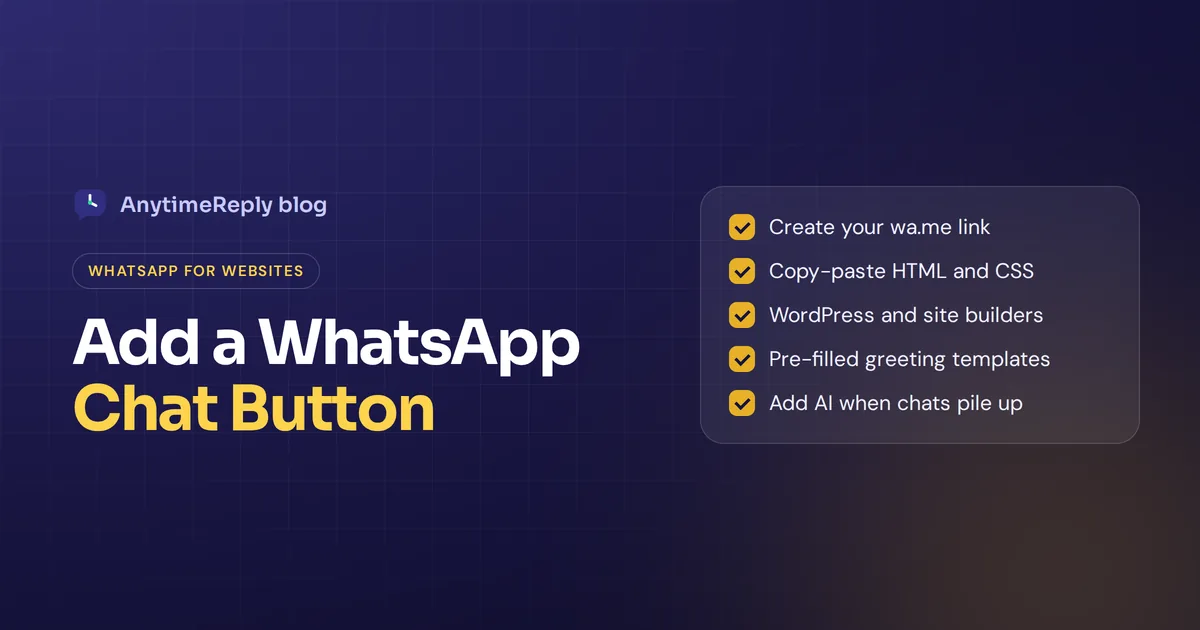
In this step-by-step tutorial you will learn how to add one with a simple link, a short snippet, or a site add-on, plus where to place it and what to pre-fill. We also cover how to add AI when replies start piling up.
What is a click-to-chat WhatsApp button?
It is a small link on your site that starts a WhatsApp conversation with your business. Most sites show it as a floating green icon in a lower corner, but you can also put it on your contact page, product pages or checkout.
Behind it is WhatsApp's own click-to-chat feature. The wa.me link looks like this:
https://wa.me/15551234567Tap it and WhatsApp opens with that number, on a phone or on a computer. The person doesn't need to save your number first.
Note: this is not the same as a share link, which lets people forward your page to their contacts. Here we only cover the one that lets visitors reach you.
Why add a WhatsApp chat button to your website?
- People prefer it. In many countries, WhatsApp is how customers talk to shops, clinics, schools and service businesses. A form feels slow by comparison.
- The conversation continues later. The customer can close your site and still see your reply on their phone hours later.
- More leads. Website visitors who aren't ready to buy may still ask a quick question, and now you have a conversation and a phone number.
- Easy to share photos and voice notes. A picture of a damaged item explains more than three emails.
- Better engagement and conversion. Being reachable where people already spend their day removes friction. It is free to set up, too.
The catch: every tap creates a conversation someone has to answer. A green icon followed by a reply the next day can feel worse than no icon at all.
How to create your wa.me link
WhatsApp's click to chat help page explains the format. The rules:
- Use your full WhatsApp number in international format: country code first, then the number.
- Leave out the plus sign, leading zeros, spaces, brackets and dashes.
- To pre-fill a greeting, add
?text=after the number, then your text in URL-encoded form (spaces become%20). - Test the link on your phone before you publish it.
| What you want | Format |
|---|---|
| Open a conversation with your number | https://wa.me/15551234567 |
| Open it with a pre-filled welcome message | https://wa.me/15551234567?text=Hi%2C%20I%20have%20a%20question |
| Wrong (will not work) | https://wa.me/+1-(555)-123-4567 |
Many third-party generators will build this for you and even generate a QR code for print, but typing it yourself is just as quick.
Add WhatsApp chat button with custom code (no plugin)
This works on almost any site where you can edit the HTML, and no external script is needed. Paste this where you want the link to appear and change the number and text:
<a id="wa-link" href="https://wa.me/15551234567?text=Hi%2C%20I%20have%20a%20question" target="_blank" rel="noopener">WhatsApp us</a>To make it float in the bottom-right corner, add this to your site's CSS:
#wa-link {
  position: fixed;
  right: 20px;
  bottom: 20px;
  background: #25D366;
  color: #ffffff;
  padding: 12px 18px;
  border-radius: 999px;
  font-weight: 600;
  text-decoration: none;
  z-index: 9999;
}
You can customize the colors or swap the text for a WhatsApp icon image. A gentle animation, like a soft pulse, can draw the eye, but keep it subtle. Make sure it is big enough to tap on a phone.
Add WhatsApp button on a WordPress website
If your site runs on WordPress or WooCommerce, the quickest route is an add-on:
- In your dashboard, go to Plugins, then Add New, and search for "WhatsApp".
- Pick one that is updated often and has good reviews, then install and activate it.
- Enter your number, choose the position and write a default greeting.
- Choose which pages show it (all pages, product pages only, and so on).
- Save, then check the result on your phone.
Avoid stacking several tools that do the same thing. Each one adds weight to your pages.
Website builders: Shopify, Wix, Squarespace and more
Shopify has apps for this, and any website builder (Wix, Squarespace, Webflow, Google Sites) lets you add a normal link or an HTML embed, which also works for e-commerce stores. You can integrate a WhatsApp link on any platform: the simplest integration is a regular link pointing to your wa.me address. Paste it, publish, test.
Best practices for your WhatsApp button
- The lower right corner is where people look. Make sure it doesn't cover "Add to cart" or the cookie banner on mobile.
- Use it on product pages. Include the product name in the pre-filled text so you know what they are asking about.
- Show your reply hours next to it on the contact page.
- Use a business number, not your personal one. A business account keeps work separate and adds a business profile.
- One floating chat button for your website is enough. Three competing icons on a page just confuse people.
- Track clicks. If you use analytics, set up a click event so you know how many visitors reach out.
Pre-filled greeting templates you can copy
A good template tells you where the customer came from, so you can answer faster:
Hi! I have a question about an order.
Hi, I'm interested in the Linen Summer Dress. Is it available in size M?
Hello, I'd like to book an appointment. What times are free this week?
Hi, I'd like a quote for [service]. My location is [city].
Keep it short. The customer can edit the text before sending.
WhatsApp widget vs live chat: what's the difference?
| WhatsApp link | Website chat tool + WhatsApp | |
|---|---|---|
| Cost | Free | Free to paid, depends on the tool |
| Visitor stays on your site | No, opens WhatsApp | Yes, and WhatsApp also works |
| Who replies | You, from your phone | A bot first, your team when needed |
| Replies at night | Only if you are awake | Automatic, 24/7 |
| Team sharing | Hard with one phone | Shared inbox with notes and assignment |
| Best for | Low volume, one person | Growing businesses |
Troubleshooting: link not working or not showing?
- Opens the wrong number or fails: check for a plus sign, leading zero or dashes.
- Not showing in production: clear your site and browser cache, and check that a security or optimization setting isn't blocking your snippet.
- Covers content on mobile: raise the bottom offset in the CSS or hide it on very small screens.
- Desktop opens a browser tab: that's normal. On a computer it opens the web version of WhatsApp.
Add AI and the WhatsApp Business API when messages pile up
A free link works well until one phone isn't enough. You get the same questions again and again, people write at night, and only one person can answer.
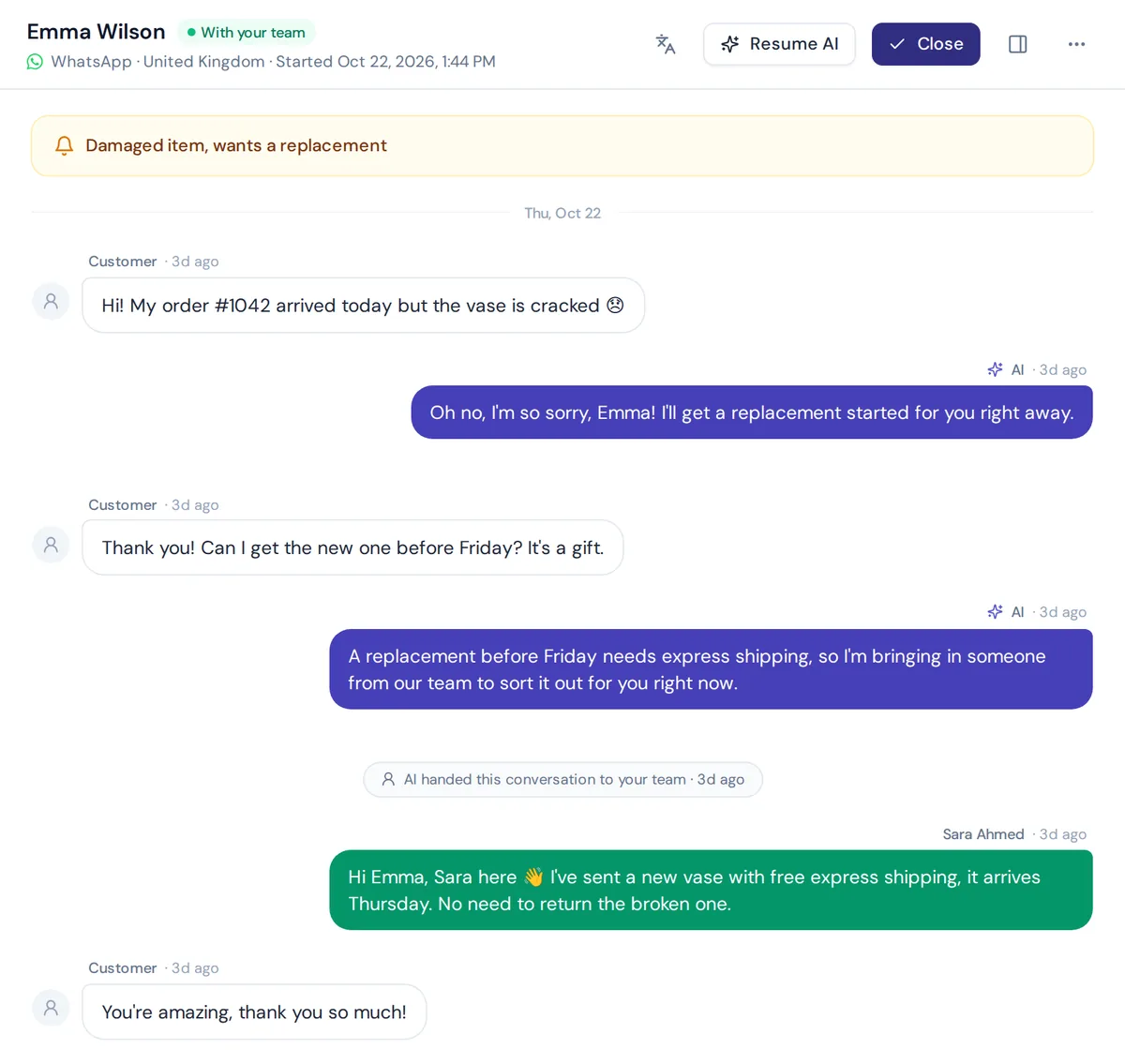
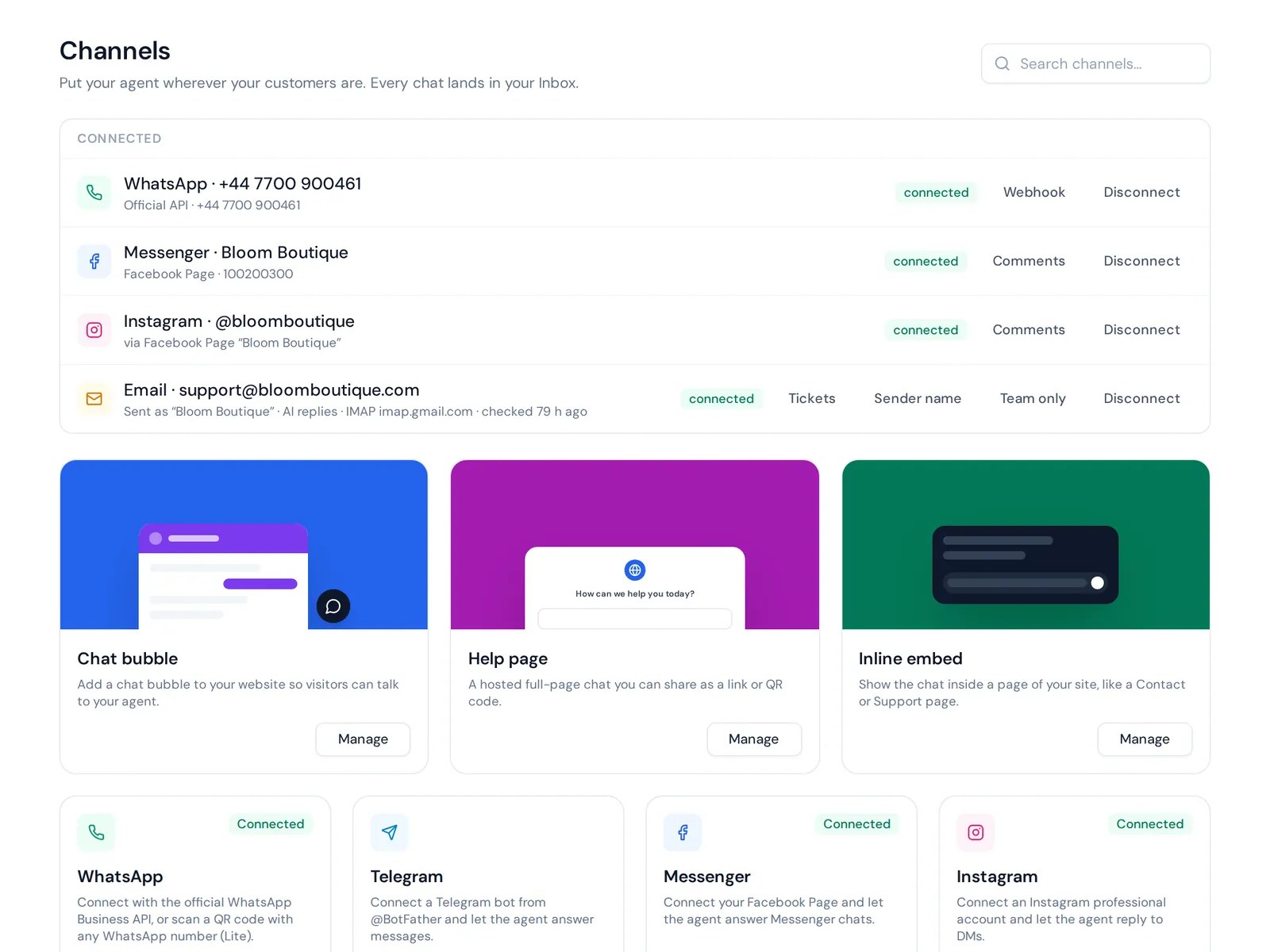
That is when businesses move to the official API or a tool that connects to it. AnytimeReply connects your number with the official API or a quick QR connect, and an AI agent replies in real-time in the customer's language. It understands voice notes and photos, and hands over to your team with a summary when someone asks for a person. See WhatsApp.
You can also add live chat to your website with one line of code, a WordPress add-on or your Shopify theme, so both channels land in one shared inbox. That keeps your customer communication in one place.
Honest note: website chat is on the Free plan, while WhatsApp needs a paid plan (Hobby, from $9 a month). If you get a few messages a week, the free link is all you need for now. Setup steps are in our WhatsApp docs.
Frequently asked questions
How do I add a WhatsApp chat button to my website?
Create a link in the format https://wa.me/yournumber, put it on your site as a link or icon, and style it to float in a corner. On most site platforms, an add-on does the same in a few clicks.
Can I add one without installing anything?
Yes. Use the example above: one link plus a few lines of CSS.
Do I need the official API for this?
No. The link works with any WhatsApp number. You only need the API when you want a team or a bot to answer from a shared inbox.
Can I use my personal number?
You can, but it isn't a good idea. Customers will write at all hours, so a separate business number is better.
Does it work on mobile devices?
Yes. On phones it opens the WhatsApp app, and on computers it opens WhatsApp Web or the desktop version.
Can I automate replies?
Not with the free link alone. To boost response times, connect your number to a tool that supports the API, so an AI can answer common questions automatically.
Final thoughts
A WhatsApp link on your site is one of the easiest wins you can get: one link, a green icon and your customers reach you where they already are. Start simple, test it on your phone and answer fast.
When volume grows, let AI share the load. Start free with AnytimeReply, add your website and see how the agent answers your customers. No card needed.
Published 6 November 2026 by AnytimeReply team