Someone is looking at your pricing page right now. They have one small question, and if the answer isn't on the page, they leave. An online chat widget is the little chat bubble in the corner that catches that question before they go.
Adding one is easy. Picking the right one is where people get stuck: live chat or AI chat, free or paid, plugin or code snippet, and what to actually write in that first greeting.
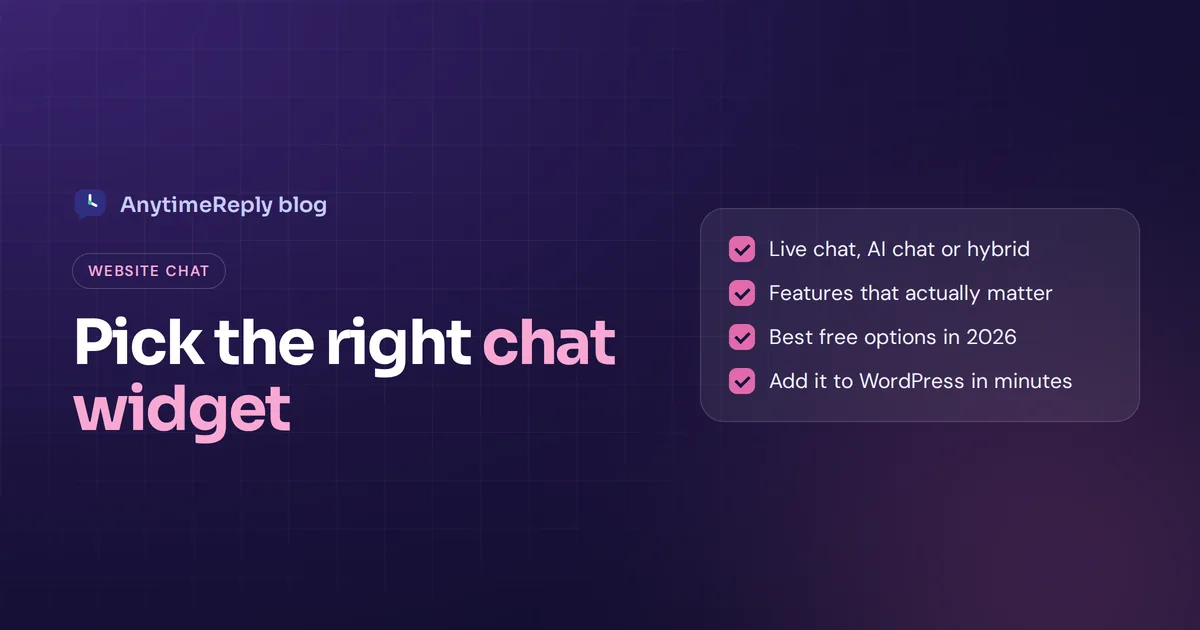
This guide covers all of it in plain words: what a chat widget does, the main types, the features that matter, the best free options in 2026, and how to add one to any site, including WordPress. We make a chat tool ourselves, so we'll point out where ours fits and where it doesn't.
What is an online chat widget?
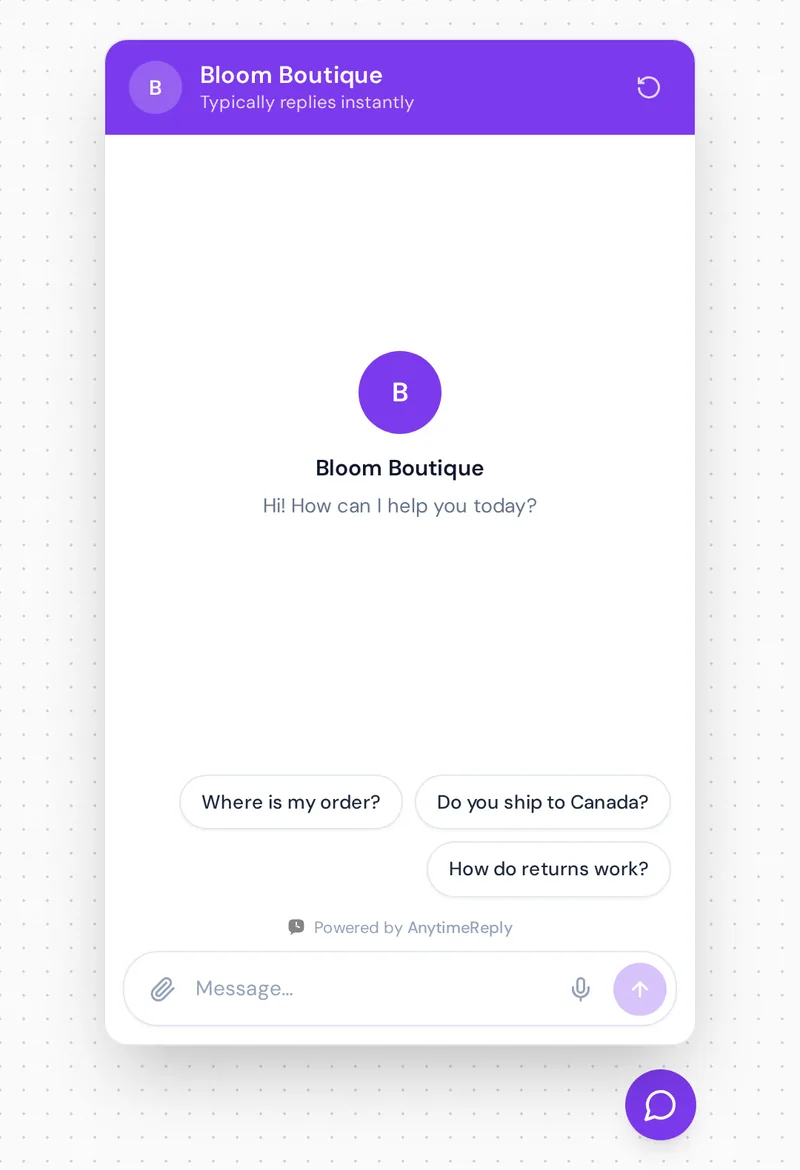
It's a small chat window on your site that lets visitors send a message and get a reply without leaving the page. It usually shows up as a round chat button in the bottom corner. Click it, and the chat interface opens.
Behind it sits a chat system where replies come from. That reply can come from a real person on your support team, from an AI chatbot, or from both. The bubble itself is just the front door. What happens behind it decides whether customers get helped or ignored.
Chat replaces two older options: the contact form (slow, feels like sending a letter) and the phone number (great until nobody picks up). Real-time chat sits in between. It is quick for the customer and cheap for you.
Why add live chat to engage website visitors?
- Answer customer questions at the moment of decision. "Do you ship to Canada?" asked on a product page is a buying signal. Answer it in seconds and you keep the sale, which is good for conversion.
- Better customer engagement. You can talk to website visitors in real time, see who is browsing and start a conversation on high-intent pages.
- Fewer emails and calls. Quick questions get solved in chat instead of turning into long email threads or a support ticket.
- Lead generation. A visitor who chats is warm. The chat can collect an email so you can follow up, and send it to your CRM.
- You learn what confuses people. Chat history shows exactly which questions your pages fail to answer.
The honest downside: chat creates an expectation. If you add it and reply four hours later, it can feel worse than having no chat at all. That is why the type you pick matters.
Live chat widget vs AI chat: the 3 types
1. Live chat widget
A real person replies. Great for personalized support, complex questions and sales conversations. The catch: someone has to be online. Outside working hours, it usually turns into an offline message form.
2. AI chat widget
An AI chatbot replies instantly, day and night. Modern AI chatbots learn from your pages, documents and knowledge base, so they can answer real questions in natural language instead of showing a fixed menu. The risk is a badly trained bot that gives vague or wrong answers.
3. Hybrid (AI first, human backup)
The AI answers first. When the question is tricky, the customer is upset, or they ask for a person, the chat moves to your chat agents. For most small and growing businesses, this is the best balance of speed and care. We wrote more about this in chatbot vs live chat.
| Live chat | AI chat | Hybrid | |
|---|---|---|---|
| Reply speed | Minutes when staffed | Seconds, 24/7 | Seconds, then a person if needed |
| Handles complex cases | Very well | Limited | Yes, through handoff |
| Cost driver | Staff hours | AI usage | Both, but fewer staff hours |
| Best for | High-touch sales, small volume | Repetitive questions, after hours | Most online shops and service businesses |
Chat widget features to look for: AI, CRM and more
Most chat widgets for websites look alike from the outside. These are the features that actually change your day.
- Easy install. One line of code to add chat to a website, or a plugin for WordPress and Shopify.
- Chat widget customization. Your colors, logo, greeting, position and language, so it looks like part of your site, not a sticker on it.
- Mobile friendly. Most visitors are on phones. The chat should open full screen and not cover your "Add to cart" button.
- Shared inbox. Chat messages from your site should land in the same place as WhatsApp, Instagram, Messenger and email, so your team doesn't jump between apps.
- Built-in AI trained on your content. AI features should learn from your own pages and documents, and say "I don't know" instead of guessing.
- Human handoff and chat routing. A clear way to pass the chat to the right person, with the history attached.
- Offline handling. When nobody is online, collect an email, create support tickets or let the AI answer.
- Multilingual support. If your customers write in different languages, replies should match theirs.
- Proactive messages. Optional nudges, for example after 30 seconds on the pricing page.
- Integration with your other tools. CRM, help desk, ecommerce store, Slack.
- Analytics. Number of chats, common topics and ratings.
- Spam protection. Public chat attracts junk. You want a way to filter it.
- Light on page speed. A good chat widget loads after your page content, so it doesn't slow anything down.
Best free live chat widget options in 2026
Here are well-known free live chat software options, or tools with a free way to start. We describe what each is known for. Plans change often, so check each pricing page for current limits.
AnytimeReply
Our own tool, so take this with a pinch of salt. AnytimeReply is an AI agent plus helpdesk. The Free plan includes website chat, the shared inbox, a help center and analytics, with 50 AI credits a month. It suits businesses that want AI to answer first and a person to take over. Limit: messaging channels like WhatsApp are paid, and it has no phone or SMS channel.
tawk.to
Known as a free live chat tool with no cap on agents. It makes money from paid add-ons instead. A good pick if you want plain live chat support and have people to answer.
HubSpot
HubSpot's free chat comes with its free CRM, so chats and contacts land in the same place. Strong choice if you already use HubSpot for marketing or sales. More advanced chat and AI features sit on paid tiers.
Tidio
Popular with small online stores. It mixes live chat, simple automation and an AI agent, and connects to common ecommerce platforms.
Crisp
A friendly live chat solution with a shared inbox and free access for small teams. Paid plans add more channels and automation.
LiveChat and Zendesk
Both are paid tools with free trials rather than free plans. LiveChat is known for a polished app for chat agents. Zendesk adds chat to a broader support suite with tickets and a knowledge base. Worth a look for larger teams.
| Tool | Known for | Good fit |
|---|---|---|
| AnytimeReply | AI agent first, human handoff, one inbox for all channels | Shops and service businesses that want 24/7 answers |
| tawk.to | Free chat, paid add-ons | Teams with people online to reply |
| HubSpot | Free chat with free CRM, part of a support stack | Businesses already on HubSpot |
| Tidio | Live chat plus AI for ecommerce | Small online stores |
| Crisp | Simple shared inbox | Small teams |
| LiveChat, Zendesk | Mature paid support tools | Larger support teams |
Free chat widget for website: what you really get
Starting free is a great idea, as long as you know the usual limits:
- Branding ("Powered by...") on the chat bubble
- Limited AI replies or AI only on paid plans
- Fewer team seats or a short chat history
- Site chat only, with WhatsApp, Instagram and email on paid plans
Our advice: pick an option that lets you test the thing you care about most. If you want AI support, make sure you get some real AI replies for free, not just a demo. For paid tools, a 14-day free trial or similar is usually enough to judge the basics.
Adding live chat: how to add a live chat widget to your website
Every tool differs a little, but the steps are almost always the same:
- Sign up for a live chat tool and create a new chat widget for your site.
- Customize the look: color, logo, greeting, which corner it sits in.
- Set who answers: your team, an AI agent, or AI first with team backup. If you use AI, add your pages and documents so it can learn.
- Copy the embed code. This is usually one short script tag.
- Paste it into your site, just before the closing body tag, or use your platform's plugin or app instead.
- Test on desktop and phone. Ask five real questions customers ask you and check the answers.
- Turn on notifications for your team so handed-over chats don't sit unanswered.
Adding a WordPress chat widget
The easiest route is a plugin from your chat provider. Install it from the Plugins page, connect your account and the chat appears on every page. If there is no plugin, paste the embed code with a header and footer code plugin. Avoid editing theme files directly, because a theme update can wipe your changes.
Adding chat on Shopify and other builders
Shopify stores usually add chat through an app or a theme app embed. Some tools can also read your product catalog, so the chat can answer price and stock questions. Wix, Squarespace, Webflow and most site builders have a "custom code" or "embed" setting where you paste the script.
Chat greeting examples you can copy
The first message decides whether people click. Keep it short, specific and helpful:
Hi! Questions about sizing, delivery or returns? Ask here, we reply in seconds.
Looking at plans? Tell me your team size and I'll point you to the right one.
Need help with your order? Type your order number and I'll check it.
We're offline right now, but our assistant can still answer most questions. Or leave your email and we'll reply in the morning.
Booking a visit? Ask me about times, prices or what to bring.
Pair the greeting with 2 or 3 suggested questions based on your most common chats, like "Where is my order?", "Do you ship to my country?" and "How do returns work?"
Best practices for customer support live chat and chatbots
- Set honest expectations. If a person replies, say how long it usually takes. If AI handling comes first, say so.
- Don't pop up on every page. An auto-opening chat on the homepage annoys people. Use proactive messages on pricing and checkout pages instead.
- Don't ask for an email before the first question. Help first, ask later.
- Keep it out of the way on mobile. Make sure the chat button doesn't hide key buttons.
- Train the AI on real questions. Read the first 50 chats and add answers to the questions it got wrong.
- Make handoff easy. "Talk to a person" should always work.
- Look at the data monthly. Questions that come up again and again belong on your site or in your knowledge base too.
Common mistakes we see: live chat with nobody to answer it, a bot that guesses prices instead of saying it doesn't know, colors that clash with your brand, and website chat in one app while WhatsApp and email live in two others.
The AnytimeReply chat widget
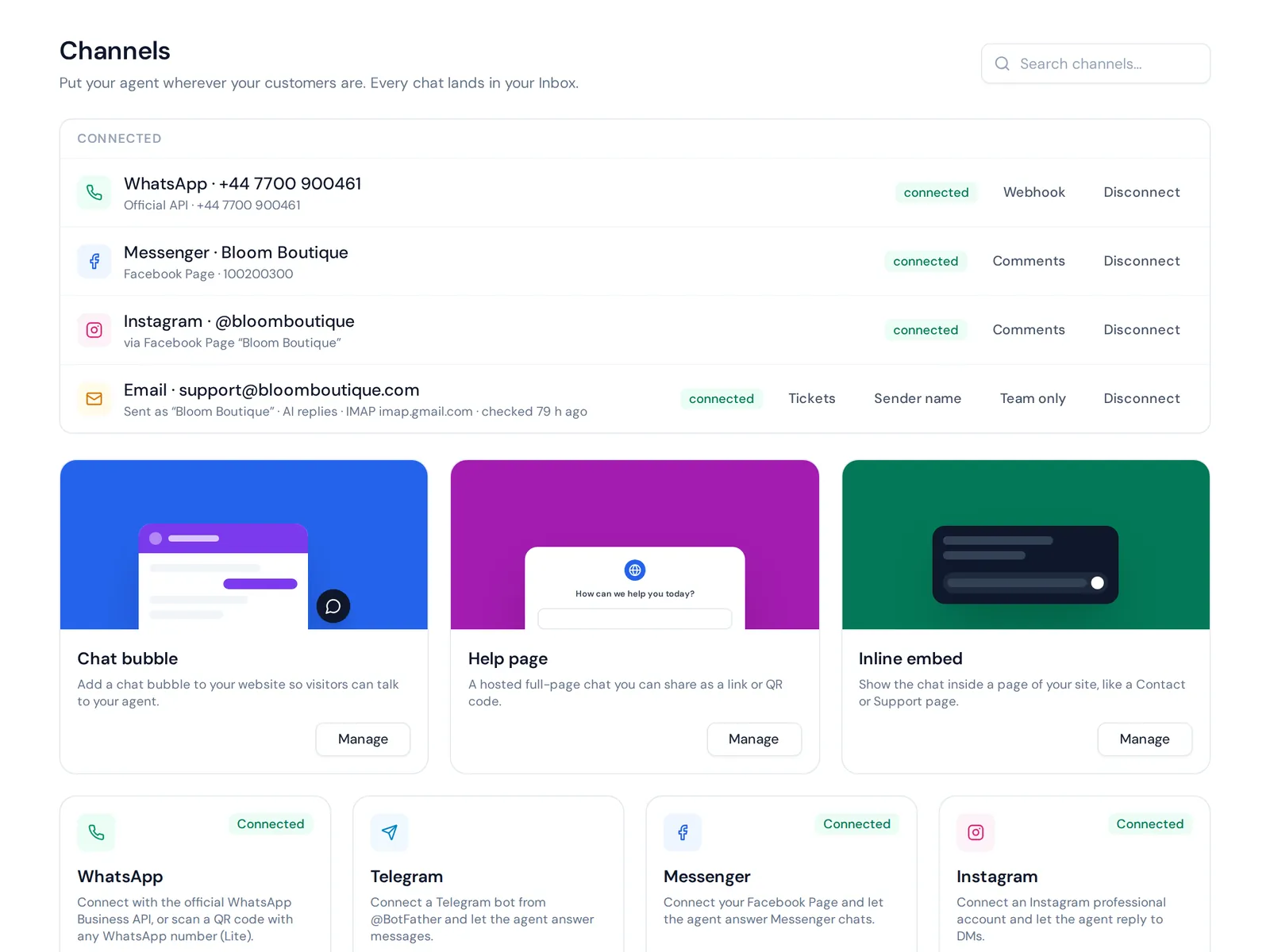
AnytimeReply is an AI customer support agent with a built-in help desk. Our website chat works as a chat bubble, an inline embed or a hosted help page. You add it with one line of code, our WordPress plugin or the Shopify theme.
- The AI agent learns from your site, documents and Notion pages, replies in the customer's language and shows a confidence score. When it doesn't know, it says so.
- Chats go to one shared inbox, and the AI hands over to your team with a summary when a customer asks for a person or gets upset.
- Guardrails like AI spam detection pause junk chats before they use credits.
- An AI copilot suggests fixes from real chats, and analytics show topics and knowledge gaps.
The Free plan covers site chat, flows and analytics. WhatsApp, Messenger, Instagram, email and other channels start on Hobby, see pricing. Where it may not fit: if you only want simple chat with no AI at all, a basic support tool may be enough.
Frequently asked questions
Which online chat widgets are free?
tawk.to, HubSpot, Tidio, Crisp and AnytimeReply all have free plans or free ways to start. Expect limits like branding, fewer seats or a small number of AI replies.
How do I add a chat widget to WordPress?
Install your chat provider's plugin and connect your account, or paste the embed code with a header and footer code plugin.
Can I customize the chat to match my brand?
Almost every tool lets you change colors, logo, greeting and position. Removing the provider's branding is often a paid feature.
Are free chat widgets secure and GDPR compliant?
It depends on the provider. Check their privacy policy, where data is stored, whether they offer a data processing agreement and whether your chats are used to train AI.
Can a chat widget hand conversations to human agents?
Yes. Good hybrid tools let AI answer first and pass the chat to a person, with the full history, when needed.
Can I capture contact details from chats?
Yes. Most tools can ask for a name and email during the chat and save it as a contact or send it to your CRM.
Add your chat widget today
Pick one page with the most questions, add chat there, and read every conversation for a week. You'll learn more about your customers than any survey can tell you. If you want AI that answers instantly and hands tricky chats to your team, start free, no card needed.
Published 30 October 2026 by AnytimeReply team