You're off for a week, or your inbox is simply too busy to answer everyone today. A Gmail auto reply sends an automatic response to people who email you, so they know you got their message and when to expect an answer. Setting one up takes about two minutes.
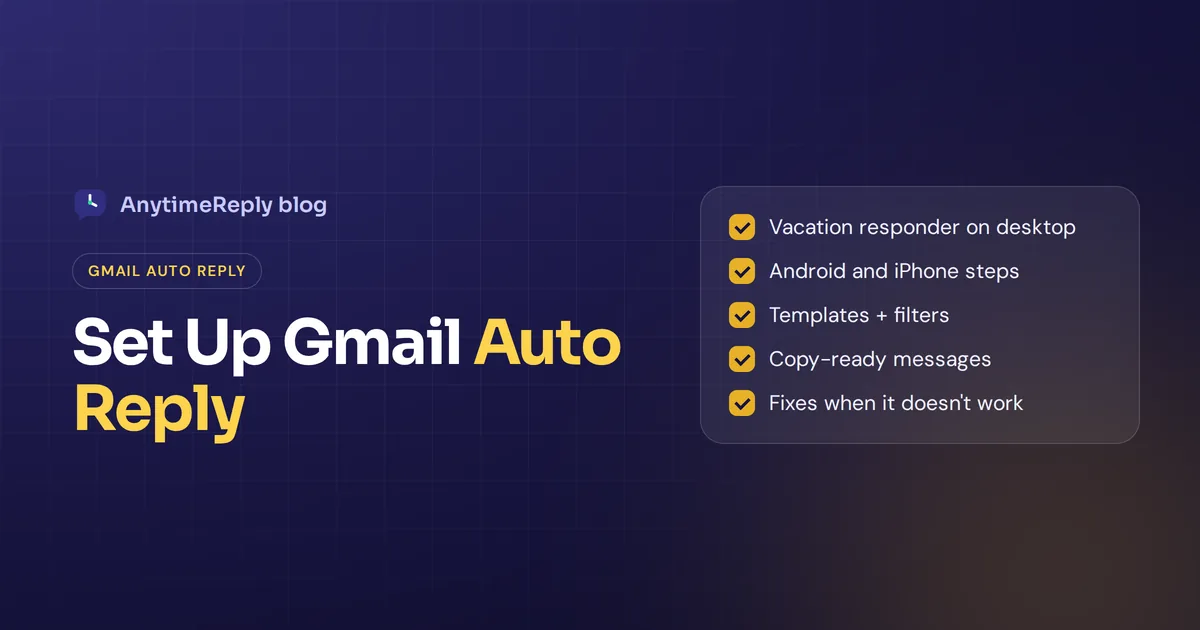
This setup guide shows how to set auto reply in Gmail on a computer, Android and iPhone, how to send automatic replies to only some emails with templates and filters, copy-ready messages, and fixes for when it doesn't work.
What is a Gmail auto reply?
The built-in auto response Gmail offers is called the vacation responder. You turn it on, choose a first and last day, write a subject and a message, and Gmail sends that reply to anyone who emails you during that period. It works the same on free Gmail and Google Workspace accounts.
How it behaves, according to Google's help page:
- It starts at 12:00 AM on the first day and ends at 11:59 PM on the last day, unless you end it earlier.
- Gmail's vacation responder sends replies to each sender only the first time they write. If they email again after four days and it's still on, they get it again.
- If you edit the message, people get the new version next time they email you.
- Emails in spam and messages from a mailing list you subscribe to don't get a reply.
- Your signature, if you have one, is added below the message.
And yes, you still receive every incoming email while it's on. The vacation response only sends a note back. Nothing is held or deleted.
How to set up auto reply on desktop
The computer gives you every option, so it's the easiest place to set up a Gmail out of office message.
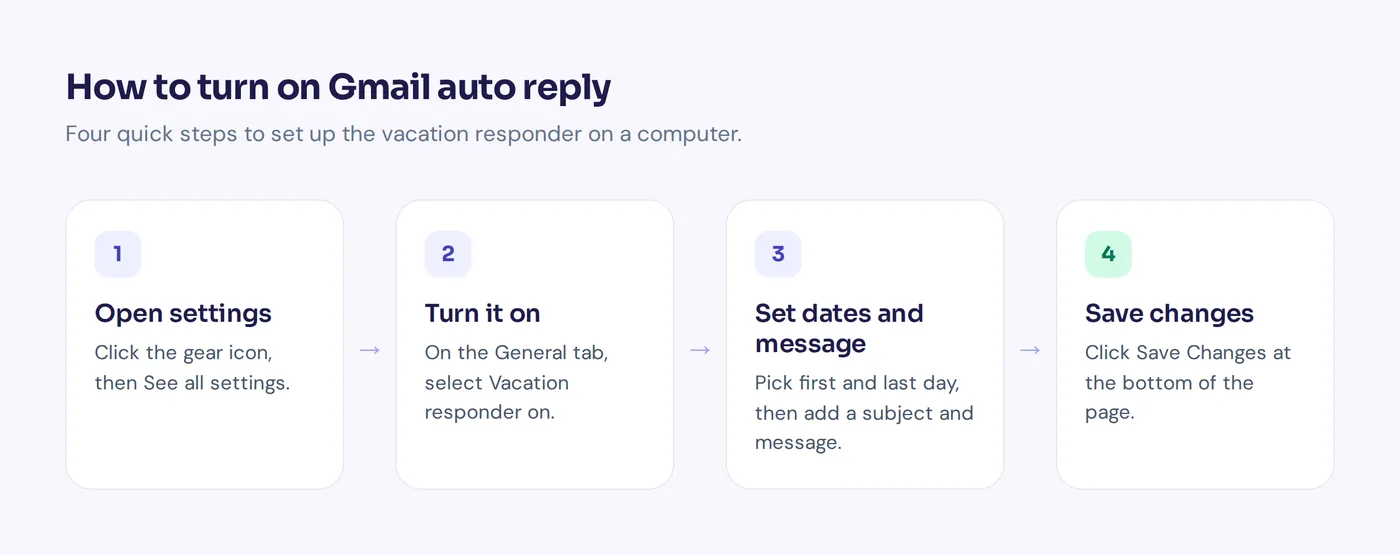
- Open Gmail in your browser.
- Click the Settings gear at the top right, then See all settings.
- On the General tab, scroll down to Vacation responder.
- Select Vacation responder on.
- Pick the First day. Tick Last day and choose a date if you want it to stop on its own.
- Type a Subject and your Message.
- Optional: tick the box to send a response to people in your contacts only.
- Click Save Changes at the bottom.
While it's on, a banner appears at the top of your inbox. Click End now to switch it off early.
Tip: add a subject line. Google notes it keeps your reply out of the existing thread, so the sender gets it as a separate email and is more likely to see it.
How to set up a Gmail out of office reply on your phone
Android
- Open the Gmail app, tap the Menu icon at the top left, then Settings.
- Choose your account and tap Vacation responder.
- Switch it on, then enter the dates, subject and message.
- Optional: tick the box to reply only to your contacts.
- Tap Done.
iPhone and iPad
- Open the app, tap the Menu icon, then Settings.
- Under Compose and Reply, tap Vacation responder.
- Turn it on and enter the dates, subject and message.
- Optional: tap Send only to my Contacts.
- Tap Save.
It's one setting per Gmail account, so turning it on in the app also turns it on in your browser. To stop it, switch the toggle off.
Gmail and Google Workspace: extra options for work accounts
On a work or school account the steps are the same. Depending on your admin's settings, you may also see an option to reply only to people inside your organization, which is handy when you don't want strangers to know you're away.
Work accounts can also set out of office in Google Calendar, which can decline new meeting invites while you're gone. That's separate from the vacation responder, so set both if you want both.
How to send auto replies to specific emails with templates and Gmail filters
When you use the vacation responder, it answers everyone. Sometimes you only want an automated email response for certain messages, like emails to your support address or with "invoice" in the subject. For that, save a reply as a template and connect it to a filter. These steps follow Google's template guide.
Step 1: Turn on Gmail templates
Enable templates under Settings: go to See all settings, open the Advanced tab, select Enable next to Templates and click Save Changes.
Step 2: Create the template
Click Compose, write your reply, then open More options (three dots), Templates, Save draft as template and Save as new template.
Step 3: Create a filter
- Click Show search options in the search bar.
- Enter your rules, such as a sender, a sender domain or a word in the subject.
- Click Create filter.
- Tick Send template, choose your template and click Create filter.
Now every matching email gets that canned response. You can edit or delete it later under Filters and Blocked Addresses in your Gmail settings. Templates only work in Gmail on a computer, and test your filter: one that's too broad will answer newsletters and receipts too.
Gmail vacation responder vs templates for automatic replies
| Vacation responder | Template + filter | |
|---|---|---|
| Who gets it | Anyone who emails you (or only contacts) | Only emails that match your filter |
| Dates | Start and end date | Runs until you delete the filter |
| Messages | One at a time | Different template replies per filter |
| Works on mobile | Yes | No, computer only |
| Best for | Holidays, sick days, travel | Support addresses, order emails |
Auto reply message examples you can copy
Keep it short: when you're back, who to contact if it's urgent, and that's it. Replace the parts in brackets.
Out of office
Subject: Out of office until [date]
Thanks for your email. I'm away until [date] with limited access to email and will reply when I'm back. For anything urgent, please contact [name] at [email].
Holiday
Subject: Closed for the holidays
Our office is closed from [date] to [date]. We'll answer every message when we're back on [date]. Thank you for your patience.
After hours
Subject: We got your message
Thanks for reaching out. We reply Monday to Friday, 9 am to 6 pm [time zone]. If you wrote outside those hours, we'll get back to you on the next working day.
Customer support
Subject: We received your request
Thanks for contacting [company]. We'll reply within [one working day]. If it's about an order, please include your order number so we can help faster.
One safety tip: don't share too much. "Away until the 20th" is enough. Nobody needs to know your house is empty.
Why is my Gmail auto-reply not working?
- The sender already got it. Gmail usually replies once per person, then again after four days. Test with an address that hasn't written to you recently.
- You tested from the same account. Use a different email address to test.
- The email went to spam or came from a mailing list. Those are skipped.
- "Only send to contacts" is ticked. Then people outside your contacts get nothing.
- The dates are off, or you never clicked Save Changes at the bottom of the page.
- Send template is missing in the filter. Make sure templates are enabled and at least one template is saved.
When an automatic reply isn't enough: AI replies to customer emails
The built-in vacation responder only says "we got your message". The customer still waits. If your business inbox fills up with the same questions (where's my order, how do returns work, what are your prices), an acknowledgement doesn't solve much.
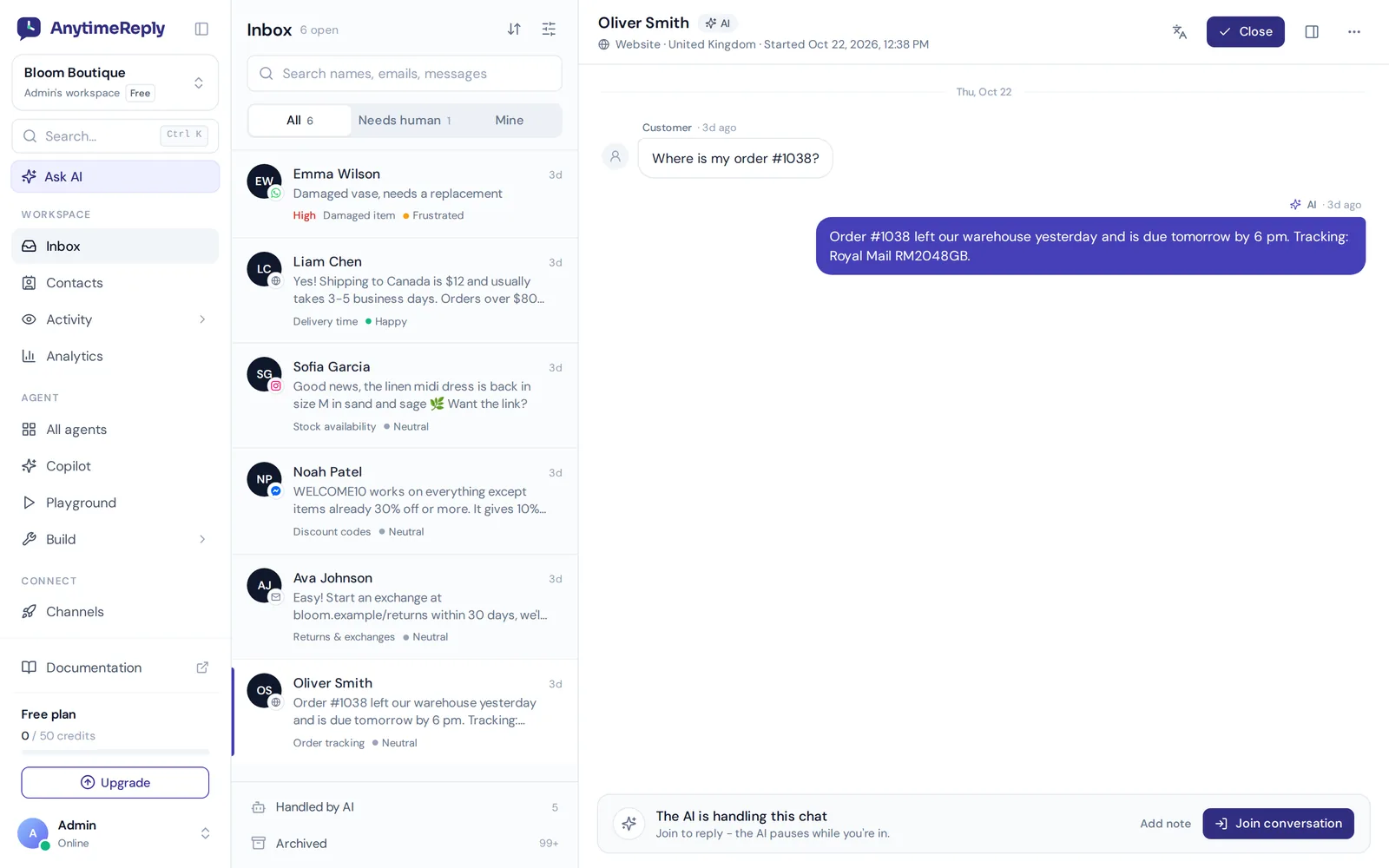
That's where email automation with AI helps. With AnytimeReply you connect Gmail, Outlook, Zoho or any IMAP/SMTP mailbox, or forward your emails. Every new support email becomes a ticket with a status, priority and owner. The AI answers common questions in the same thread, based on what it learned from your website and documents, or drafts a reply for your team. Anything it can't answer goes to a person. See our email channel and tickets pages.
The honest trade-off: for a personal out of office reply, Gmail's vacation responder is free and all you need. An AI tool makes sense for a business inbox with repeat questions every day. The email channel is on paid plans from $9 a month (prices can change, check pricing).
Frequently asked questions
Do you still receive emails when automatic reply is on?
Yes. Every incoming message still lands in your inbox as usual. Gmail just sends your automated response back to the sender.
Can I set auto reply in Gmail without an end date?
Yes. Leave the Last day box unticked. It stays on until you click End now or switch it off in the app.
How do I set up an automatic reply in Gmail on my iPhone?
Open Gmail on your iPhone, tap Menu, Settings, then Vacation responder under Compose and Reply. Turn it on, add your dates and message, and tap Save.
Can Gmail auto reply to specific senders only?
Yes, with a template and a filter. Create a filter for the sender or sender domain and choose Send template as the action.
Can Gmail answer customer emails automatically?
Not by itself. The vacation responder and templates send the same fixed text to everyone. For real answers you need an AI reply tool connected to your mailbox.
Final thoughts
For a holiday or a sick day, the vacation responder does the job in two minutes. For recurring emails, a template and a filter give you more control. And if your business inbox is buried in the same questions every day, let AI answer them properly instead of just saying "we'll get back to you".
Want to see how that works with your own emails? Start free with AnytimeReply, no card needed.
Published 31 October 2026 by AnytimeReply team