A customer taps the little bubble in the corner of your site. In about two seconds they decide if it's worth typing into. Do they know who they're talking to? Can they see what it helps with? Is the text box easy to find on a small phone? That first look is your chatbot UI, and it decides whether the conversation even starts.
You don't need a design agency to get it right. A good chatbot UI is a handful of simple parts done well, clear words, and an easy path to a real person. Below you'll find the parts, design tips, real examples, and a practical framework to create one yourself.
Quick heads-up: we build a customer support tool, AnytimeReply, so we think about this every day. The advice works whether you use our product or write your own code.
What is a chatbot UI?
A chatbot UI (user interface) is everything people see and touch when they talk to a bot: the window, the launcher button, message bubbles, the text field, buttons and cards, and small signals like "typing..." that make it feel alive.
Think of it as the shop front. The AI model and your knowledge base do the thinking in the back room. The interface is where the customer actually meets your brand. A smart AI chatbot inside a confusing interface still feels broken.
The UI also includes words. With conversational AI, the greeting, the button labels and the "sorry, I don't know" message are as much a part of interface design as colors and fonts.
The open-source Chatbot UI project (AI chat app)
If you searched as a developer, you may mean Chatbot UI on GitHub, the open-source project by Mckay Wrigley. It's a ChatGPT-style app built with Next.js and React. You host it yourself, connect models such as OpenAI or Anthropic, and store conversation history in Supabase.
To run it locally you clone the repo, install the dependencies, set up a Supabase database and add your API keys. The project's README has the current steps, so follow that rather than an old tutorial. For commercial use, check the license file in the repo first.
It's a nice starting point for a personal or internal assistant. But it's a generic chat app, not a website support widget. There's no embeddable bubble, shared team inbox or human handoff. If your goal is answering customers, keep reading.
Chatbot UI vs chatbot UX: user interface and user experience
| Chatbot UI | Chatbot UX | |
|---|---|---|
| What it is | Visual design: layout, colors, bubbles, buttons | The whole user experience: how the conversation flow works and feels |
| Questions it answers | Is it readable? Is the input easy to find? Does it match the brand? | Did the person get help? How many steps did it take? |
| Typical decisions | Font size, avatar, quick-reply buttons, dark mode, the chatbot's name | Greeting, fallback replies, handoff rules, brand voice |
| How you test it | Usability tests, mobile checks, accessibility checks | Resolution rate, ratings, drop-offs, "talk to a human" requests |
A pretty widget with wrong answers is a bad experience. A smart AI-powered assistant in a cramped, ugly window is bad too. You need both, but the interface is what people judge first. Your interface decisions and design decisions should always follow what users are trying to get done.
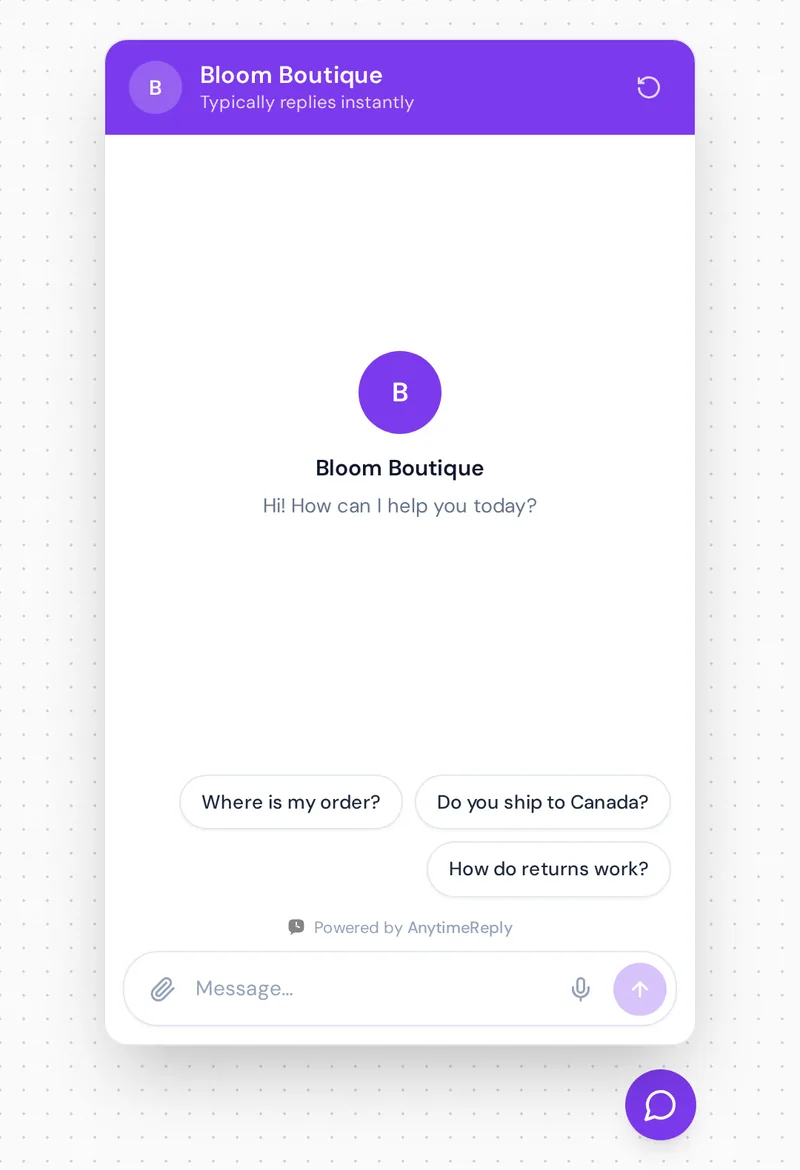
Key parts of a chat interface for chatbots, from launcher to input
- Launcher. The round icon in the corner. Easy to spot, but it should never cover your "Add to cart" button.
- Header. Name, avatar and status ("Replies in seconds"), so people know who they're talking to.
- Welcome message. One or two lines that set expectations and say what the assistant can do.
- Prompt suggestions. Tappable questions like "Where is my order?" so nobody faces an empty box. They're your onboarding.
- Message bubbles. Assistant on one side, customer on the other, in clearly different colors.
- Rich elements. Product cards, images, carousels, forms, date pickers for appointment scheduling, and source links to help articles.
- Typing indicator. Three dots while the AI works. It shows something is happening.
- Input. A big, obvious text field with a send button. Attachments and emoji are optional.
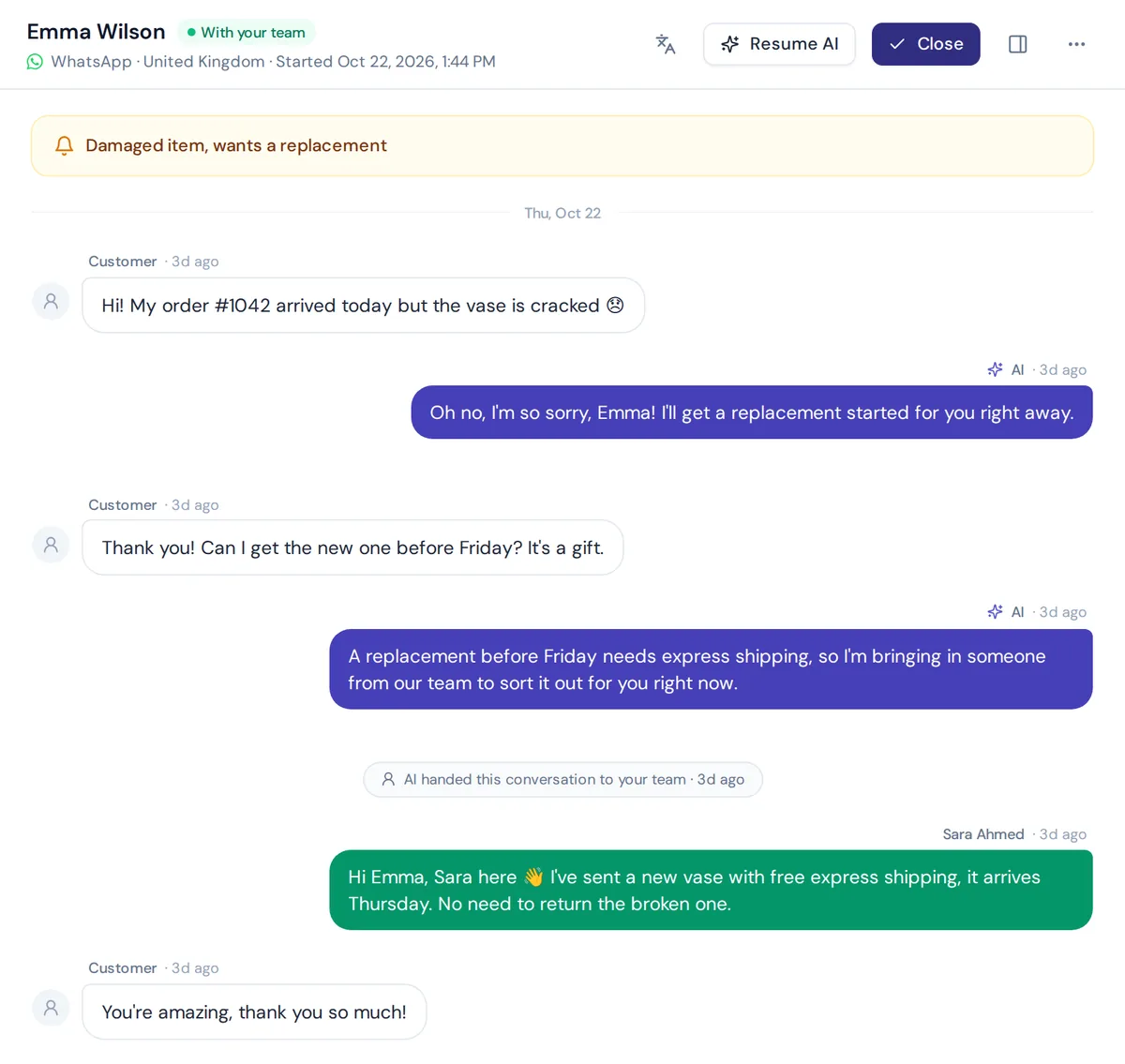
- Human handoff. A clear way to reach a person, and a visible change when a team member joins.
- Feedback. Thumbs up/down or a rating, plus an option to email the transcript.
Best practices for chatbot UI design
1. Say what the assistant can do
The biggest problem is the blank box. Your welcome message and suggestions should help users see "what is this for?" at a glance, and hint at what the bot can't do.
2. Be honest that it's AI
Give it a name, but don't pretend it's a person. Customers forgive software. They don't forgive feeling tricked.
3. Keep messages short
Short bubbles, bullets, important part first. If an answer needs a full page, link the help article.
4. Use buttons for choices, text for questions
Quick replies work when there are two to four clear options (Track order / Returns / Talk to us). Free text is better when people need to explain. A well-designed chatbot mixes both.
5. Make the way out obvious
When someone types "agent" or "real person", hand over. Don't argue.
6. Show status and keep the message history
Typing dots and a note when a person joins. If the visitor reloads the page, the conversation should still be there.
7. Match your brand, gently
Brand color, your logo, and the same tone as your site. A user-friendly interface beats a flashy one.
Best chatbot UI examples by situation
There's no single winner. The right one depends on where the bot lives and how users interact with it. Here's an example of each common pattern.
Online store website chatbot
A small bubble on every page that offers order tracking, shipping and returns. Product questions return cards with price and stock. Shoppers get answers without leaving the product page.
Inline assistant on a help or contact page
The conversation sits inside the page, like a search box that answers back. Great for pricing or "Contact us" pages where people came to ask something anyway.
Full-page AI assistant
A ChatGPT-style layout with history in a sidebar, like the open-source project above. It suits internal tools where people type a long query and stay a while.
Messaging apps
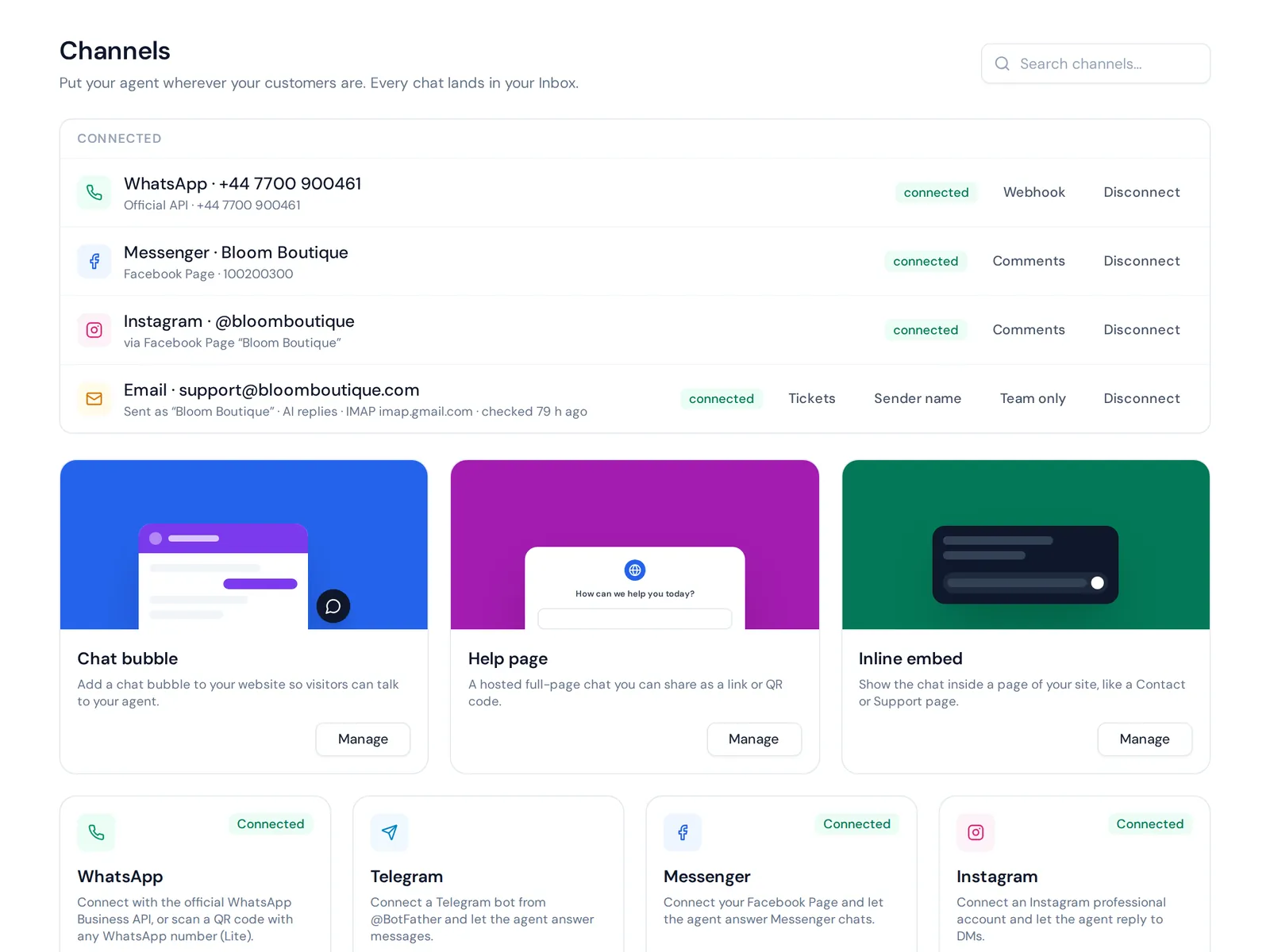
On WhatsApp, Messenger or Instagram, the app controls the window. Your UI is the words, buttons, images and reply speed.
In-app SaaS assistant
An assistant integrated into your software that answers "how do I...?" questions. The good ones know which page you're on and link to the right setting. Some newer agentic assistants can even change the setting for you, with your confirmation.
Sales assistant that can book a meeting
Think of HubSpot's chatbot on a B2B site: a couple of qualifying questions, then a calendar to pick a time. Good chatbot examples like this guide users to one clear next step.
How to create UI for chatbot: a practical framework
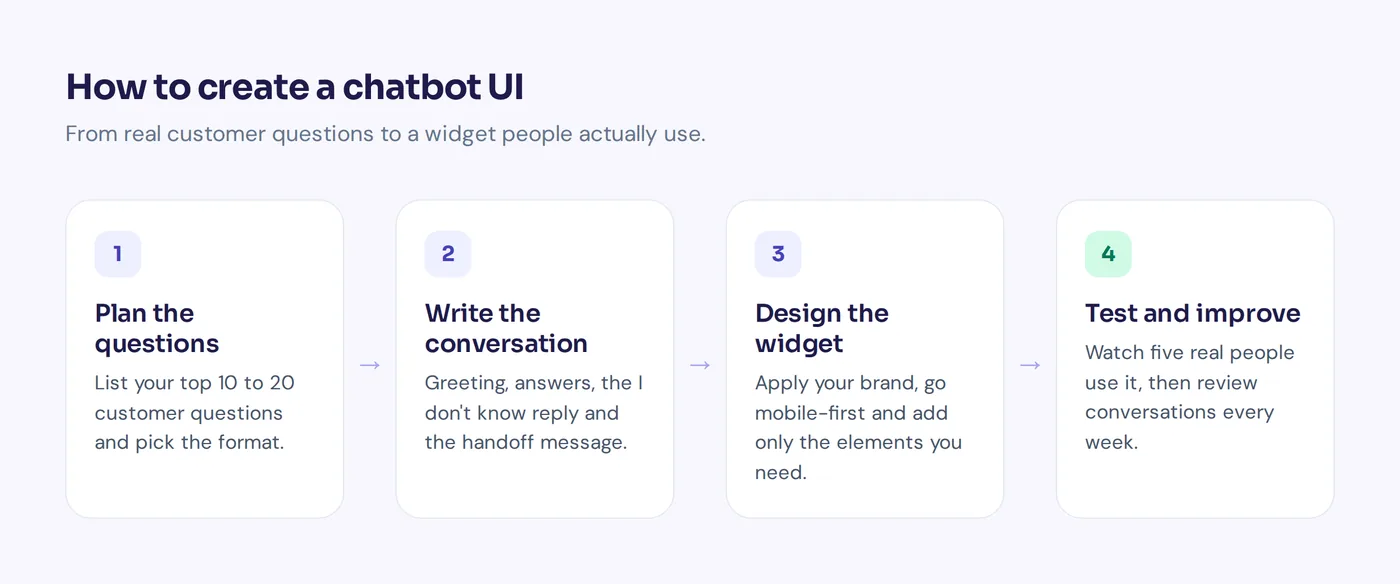
Here's a simple process for designing a chatbot interface, whether you start from scratch or customize a ready-made widget.
- List your top 10 to 20 questions. Pull them from emails, DMs and old conversations. They become your prompt suggestions and decide which elements you need.
- Pick the format. Floating widget, inline embed, full page, or messaging app. Many businesses use a website widget plus WhatsApp.
- Write the conversation first. Greeting, answers to top questions, the "I don't know" reply and the handoff message. Words before pixels.
- Sketch the key screens. Closed launcher, welcome screen, a normal reply, a card or form, and a handoff. Paper is fine.
- Apply your brand. Color, logo, avatar, name, position. Check contrast so text stays readable.
- Go mobile-first. Most conversations happen on phones. Open full screen and keep the text box above the keyboard.
- Add only the rich elements you need. Every extra element is something to maintain.
- Test with five real people. Give each a task ("find out if they ship to Canada") and watch where they get stuck. That tells you how the chatbot performs in real life.
- Launch, then review weekly. Check drop-offs and unanswered questions.
Conversational microcopy you can copy
In a conversational interface, the text is the interface. Use this mini template and adjust it to your brand voice.
Welcome:
Hi! I'm Bloom's AI assistant. I can help with orders, sizes, shipping and returns, or connect you with our team.
When the AI doesn't know:
I'm not sure about that one, and I don't want to guess. Want me to pass this to our team?
Handoff:
Got it. I'm connecting you with a person now. I've shared a summary so you won't need to repeat yourself.
Small lines like these make the conversation feel human. Also label any AI-generated answer that might need checking, like delivery estimates.
Mobile and accessibility checklist
- Opens full screen on small phones and closes with one tap.
- Text is at least 16px with strong contrast.
- Buttons are big enough for a thumb.
- Works with keyboard only and screen readers (labels on launcher and send button).
- The launcher doesn't cover cookie banners or checkout buttons.
Common chatbot design mistakes
- Auto-opening after two seconds on every page. It feels like a pushy salesperson.
- Walls of text in one giant bubble.
- Button-only menus when the chatbot user just wants to type. Don't make the bot a maze.
- No human option. The fastest way to make someone angry.
- A tone that doesn't fit, like a jokey assistant on a law firm's site.
Build a chatbot UI yourself, use a chat UI kit, or a platform?
| Option | Good for | Watch out for |
|---|---|---|
| Open-source app (like Chatbot UI) | Developers who want their own AI chat app | You host, secure and maintain it. No support inbox or handoff. |
| Chat UI kit or React components | Product teams adding an assistant inside their app | You still build the AI, knowledge base and backend. |
| Design services agency | Big brands needing custom design and development | Cost and time. Overkill for most small businesses. |
| Support platform | Businesses that want an interactive chatbot working today | Less pixel-level control. Pick one that lets you change colors, text and position. |
Our honest opinion: for customer support, don't build from scratch. The widget is the easy part. The hard parts are good answers, handoff, a team inbox and working on WhatsApp and Instagram too.
How AnytimeReply handles the website chatbot UI for you
AnytimeReply gives you ready website chat in three formats: a bubble, an inline embed, or a hosted help page. Add it with one line of code, the WordPress plugin or the Shopify theme, then set colors, greeting and suggested questions.
Behind the interface, the AI agent learns from your website and documents and replies in the customer's language. Shopify products show as cards with price and stock. Answers come with a confidence score, and when it doesn't know, it says so. When a customer asks for a person, the conversation moves to your shared inbox with a summary, and the AI pauses while your teammate replies.
Website chat, the helpdesk inbox and flows are on the Free plan. Where we're not a fit: if you want a fully custom ChatGPT-style app with pixel-perfect design, open-source code gives you more control.
Frequently asked questions about chatbot UI
What makes a good chatbot UI?
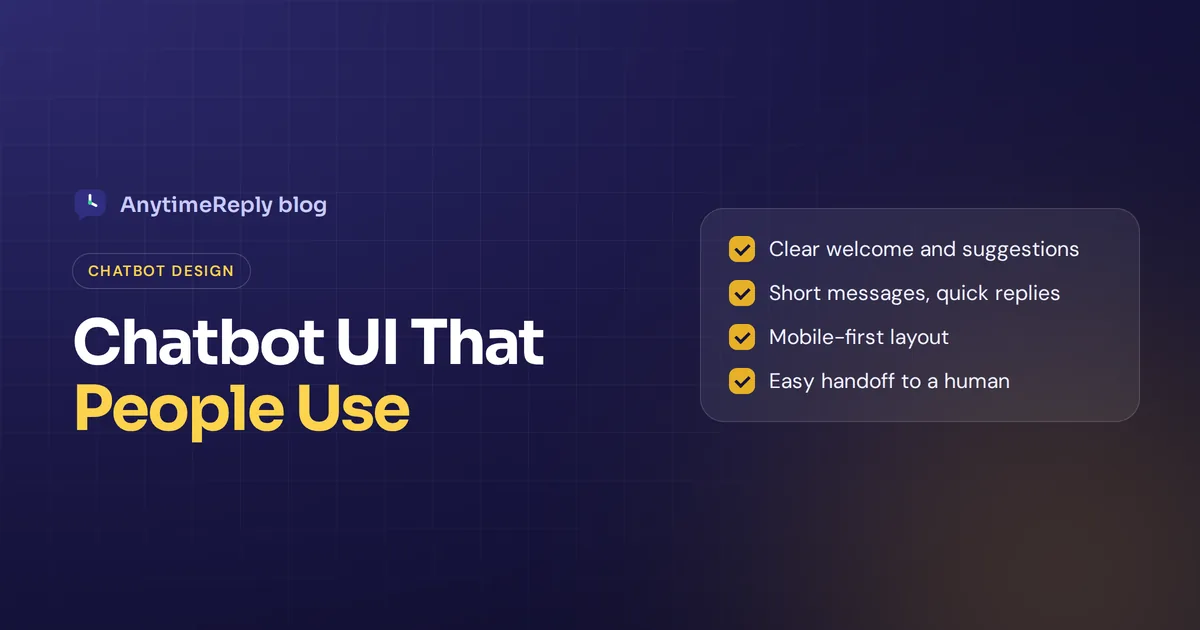
Clear purpose, short messages, quick replies for common questions, an easy input, visible status, a mobile-friendly layout and an obvious way to reach a human. That's how the chatbot helps instead of getting in the way.
Does chatbot UI need to be different on mobile?
Yes. Open it full screen, keep the typing area above the keyboard, and use bigger buttons. Most people will see it on a phone.
How can I customize the UI of my chatbot without coding?
Use a platform with a customizable widget. Pick colors, write the greeting and suggestions, then paste one line of code or install a plugin.
Is Chatbot UI free?
The project is open source, so the code is free. You still pay for hosting and for the AI model you use.
How can I test my chatbot UI?
Watch five real people complete simple tasks, check it on a few phones, and read real conversations after launch. AI chatbots also need regular answer tests whenever you change their content.
Final thoughts
A great chatbot UI isn't about fancy animation. It's a clear welcome, short messages, buttons for the common stuff, a mobile layout and an easy path to a person. Get those right and people will actually use your bot.
Want a ready-made interface on your own site? Start free with AnytimeReply, add your website and test the widget in a few minutes. No card needed.
Published 30 October 2026 by AnytimeReply team