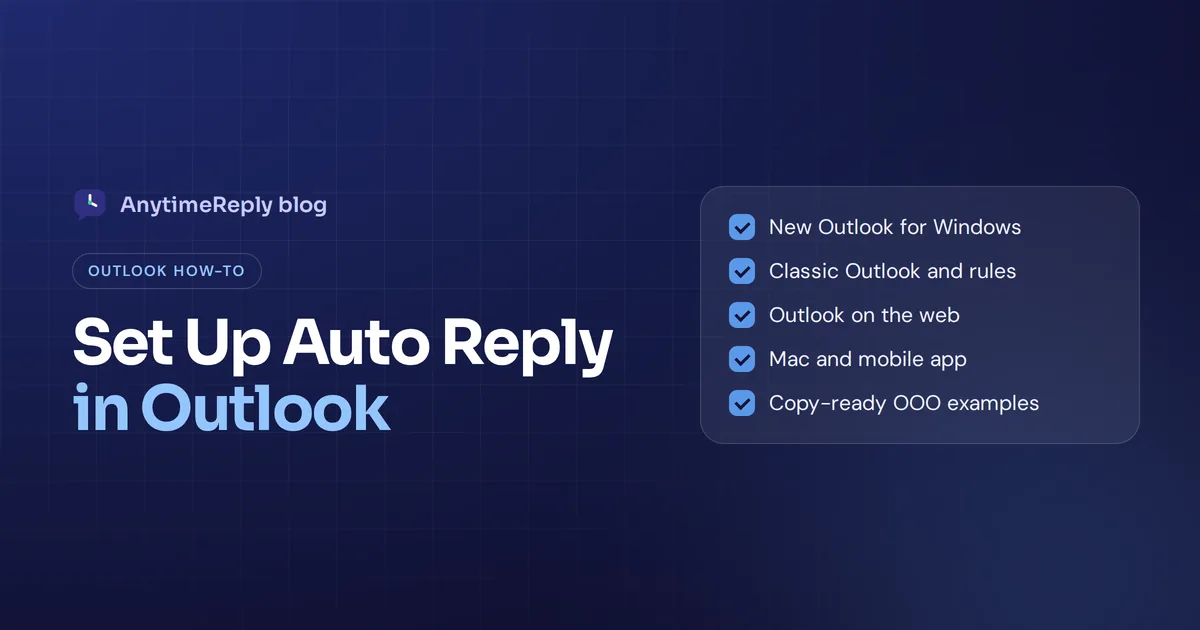
Going on holiday, or stuck in workshops for three days? An auto reply in Outlook tells people you're out of the office, so nobody thinks you're ignoring them. It's a short autoreply message that Outlook's server will generate when an incoming email arrives while you're gone.
The annoying part: Microsoft has several versions of the app, and the setting sits in a different place in each. Below are clear instructions on how to set it up in every one, checked against Microsoft's support pages in October 2026, plus a list of ready-to-copy examples and fixes for when things don't work.
First, which version of Microsoft Outlook do you have?
Check this before you start clicking. It takes ten seconds.
- New Outlook for Windows: looks a lot like the browser one, with a View tab and a settings gear.
- Classic desktop app: you see a File tab at the top left of the ribbon.
- Outlook on the web: you're in a browser at outlook.com or outlook.office.com.
- Mac or phone: the Mac app, or the mobile app on iPhone or Android.
The type of account matters too. Work or school accounts (Microsoft 365 or Exchange) and Outlook.com have the built-in function. Gmail, Yahoo and other IMAP or POP addresses added to the classic app don't, so they need a workaround (below).
How to set up automatic replies in Outlook (new app for Windows)
Each instruction below applies to the version of Outlook that ships on most new Windows PCs.
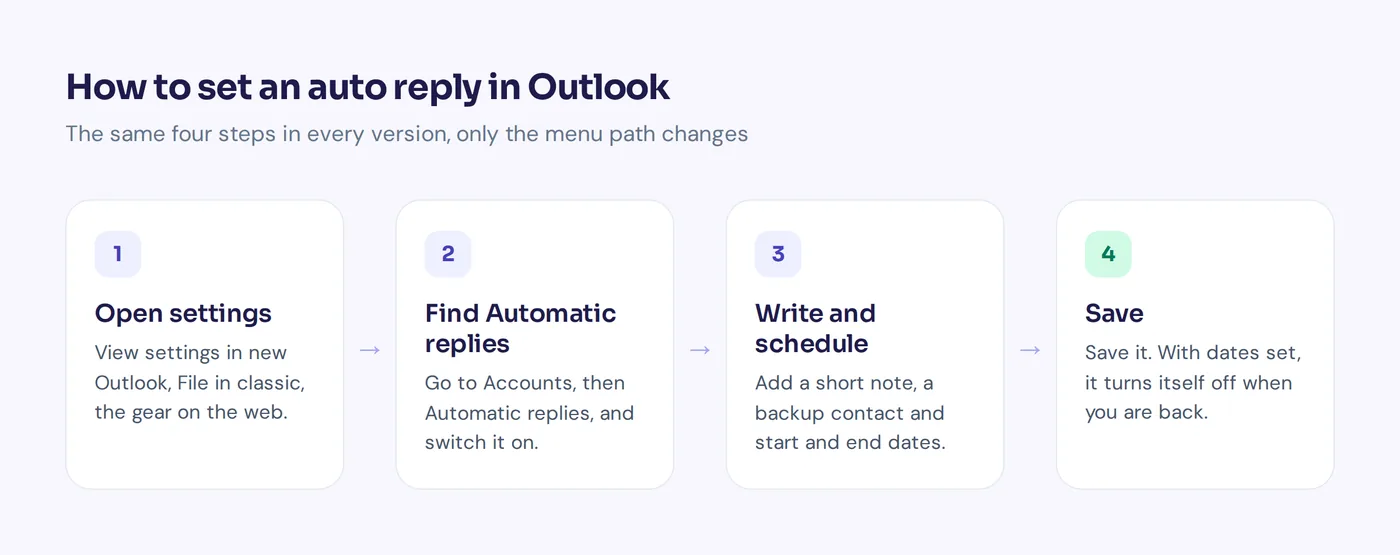
- Open the View tab and select View settings.
- Go to Accounts, then Automatic replies.
- Switch on the toggle.
- Optional: tick Send replies only during a time period and specify start and end times. It then switches off by itself.
- Type your message in the text box.
- Optional: limit replies to your contacts, or for work accounts, choose whether people outside your organization get one too.
- Select Save.
No time period? Then it runs until you switch it off, so put a reminder in your calendar.
Classic desktop app: send automatic replies or create a rule
Work or school account
- Select File, then Automatic Replies.
- Choose Send automatic replies.
- Optional: tick Only send during this time range and pick dates.
- Write your response on the Inside My Organization tab. That's what colleagues inside your organization see.
- Use the second tab for everyone else. Microsoft recommends My contacts only there, so spammers don't learn your address is active. External senders you don't know get nothing.
- Select OK.
Gmail, Yahoo, IMAP or POP
No such button under File? Then you need a template plus a rule:
- Create a new email message with the subject and words you want people to receive.
- Choose File > Save As and save it as an Outlook Template (*.oft).
- Go to File > Manage Rules & Alerts > New Rule.
- Pick Apply rule on messages I receive, leave the conditions empty and confirm it should apply to every incoming item.
- Tick reply using a specific template and choose your file from "User Templates in File System".
- Name it (for example "OOO") and click Finish.
The catch: Microsoft says the app must stay open for this to work. Shut your laptop and the replies stop. For a real holiday, use the vacation responder in Gmail or your provider's server settings instead.
Outlook on the web and Outlook.com
- Select Settings (the gear) at the top right.
- Go to Accounts > Automatic replies.
- Turn on the toggle.
- Optional: choose a time period, and tick Block my calendar or decline new meetings while you're away.
- Write your note and decide whether people outside your company get it.
- Select Save.
Good to know: each sender gets your reply only once while you're away, so a colleague who writes five times won't get five copies.
Mac and the mobile app
Mac
Open the Tools menu, choose Automatic Replies, pick the right email from the drop-down and flip the switch at the top. Add your note, choose a time period if you like, and close the window. This works for Microsoft 365 and Outlook.com, not for Gmail or other IMAP accounts.
iPhone and Android
Open Settings in the app, tap your account, tap Automatic Replies and switch it on. You can schedule it, block your calendar and choose whether replies go to everyone or only your company. Handy when you forgot before leaving.
Turning off your OOO reply
- New app and web: switch the toggle off and save.
- Classic: click Turn off on the yellow bar under the ribbon.
- IMAP workaround: untick it in Manage Rules & Alerts.
- Mac and mobile: switch the toggle off.
A forgotten "back on June 3" notice still running in August looks careless, so schedule it whenever you can, and update the dates if your plans change.
What to say: automatic out of office examples
Keep it short. Say when you're back and who to contact if it's urgent. Copy one of these:
Holiday: Hi, thanks for writing. I'm on holiday until Monday, June 3, with no access to email. For anything urgent, please contact Sarah at [email protected].
Busy week: Thanks for getting in touch. I'm at a conference until Friday and will check your note next week. Urgent support questions can go to [email protected].
Long leave: Thank you for your note. I'm on leave until September 15. Ahmed ([email protected]) is covering my projects while I'm away.
Team or shared mailbox: Hi, our office is closed for the public holiday and reopens Wednesday at 9 am. We'll answer everything in the order it arrived.
Don't share too much about where you are or how long your home is empty, especially with people you don't know.
Troubleshooting: when it doesn't work
- Option missing. You probably use IMAP or POP. Use the template method or your provider's settings.
- Someone got nothing. They may have had a reply already, since each person gets one. Also check junk filters on their side.
- Customers get nothing. Make sure you enabled replies for people outside your organization. Some IT teams block this; ask your admin.
- Replies stopped. The desktop app was closed, or a password change signed you out. Check your mail and sign in again.
- Wrong dates. Check the start and end time, and your time zone.
When an away notice isn't enough
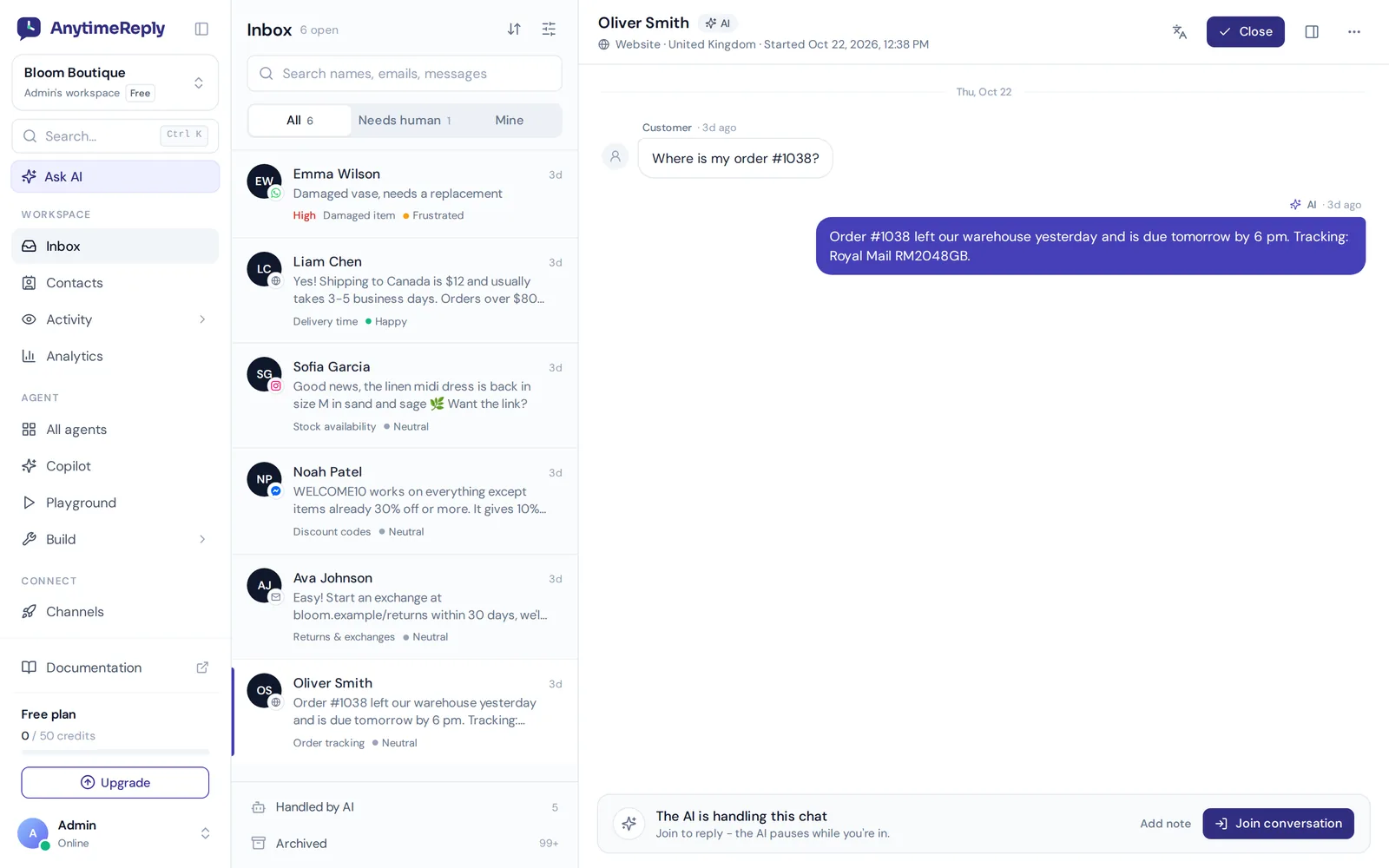
Many small businesses put the same trick on their support inbox: "Thanks, we'll get back to you within 24 hours." Polite, but it doesn't answer anything. The customer asked "Where is my order?" and still has to wait.
That's where we come in. AnytimeReply is an AI support agent with a built-in helpdesk, and it can work with the mailbox you already have:
- Connect your email account. Outlook, Gmail, Zoho or any IMAP/SMTP mailbox, or just set up forwarding. See the email channel.
- Every email becomes a ticket with status, priority and owner. A customer reply reopens it. More on tickets.
- Real answers. The AI is trained on your website and documents, answers common questions in the same thread, or drafts a reply for your team to check.
- Handoff. Tricky cases go to your team with a summary.
Honest limits: the email channel is on paid plans (from Hobby, $9 a month). And for a personal holiday notice you don't need us at all; the built-in feature is perfect.
Frequently asked questions
Can I turn on automatic replies in the Outlook app?
Yes. In the mobile app, go to Settings, tap your profile, then Automatic Replies. It works for Microsoft 365 and Outlook.com.
How do I set out of office in the Outlook calendar?
On the web and in the new app, tick "Block my calendar" when you set up the reply. It adds an away event for that time period.
Does an out-of-office reply include my signature?
Not automatically. Add your name and contact details to the body yourself.
Why can't I find the out-of-office option?
Most likely you use Gmail, Yahoo, IMAP or POP in the classic app. Use a template instead.
Final thoughts
Once you know which app you use, the setup takes two minutes. Pick a time period, add a backup contact, and enjoy your time off.
And if your customer inbox needs real answers, not "we'll get back to you", start free with AnytimeReply. No card needed.
Published 26 October 2026 by AnytimeReply team