A visitor asks your website chat about pricing at 10 pm, leaves an email address and says they will "think about it". Next morning, nobody on your sales team knows that chat happened. The lead sits in a chat log, not in your CRM, and it goes cold.
A chatbot CRM setup fixes exactly that. The chatbot talks to customers, and everything it learns (name, email, what they asked, what they want) lands in your customer relationship management system automatically. And when the customer comes back, the bot already knows who they are.
In this guide we explain what a CRM chatbot actually does, how the integration works under the hood, which setups make sense for small teams, and the mistakes we see most often. We build an AI support agent, so we have a bias, but most of this is useful no matter which tools you pick.
What is a chatbot CRM?
The term means a chatbot connected to your CRM software, so the two systems share data in both directions:
- From chatbot to CRM: new leads, contact details, conversation summaries, tags and the questions people asked.
- From CRM to chatbot: who the customer is, what they bought, their plan, open deals or tickets, so the bot can give personalized answers.
Some people use the phrase for CRM platforms that have chatbots built in. HubSpot's chatbot builder and Salesforce's AI agents are two well-known examples. Others mean an outside bot plugged into the CRM they already use. Both count. The goal is the same: no customer conversation should live outside your customer records.
Traditional chatbots vs AI-powered chatbots
Traditional chatbots follow a script of buttons and rules. They are fine for "pick a department" menus but get stuck the moment a customer types something unexpected. AI-powered chatbots use conversational AI and generative AI to understand normal sentences and answer from your own content, like your website, pricing page and knowledge base. When you add CRM context to that, the bot stops being a FAQ machine and starts acting more like an AI agent that knows your customers.
Benefits of AI chatbots with CRM integration
A chatbot on its own answers questions. Connected to a CRM, it turns those answers into sales and better service. Here is what changes in practice.
No more lost leads
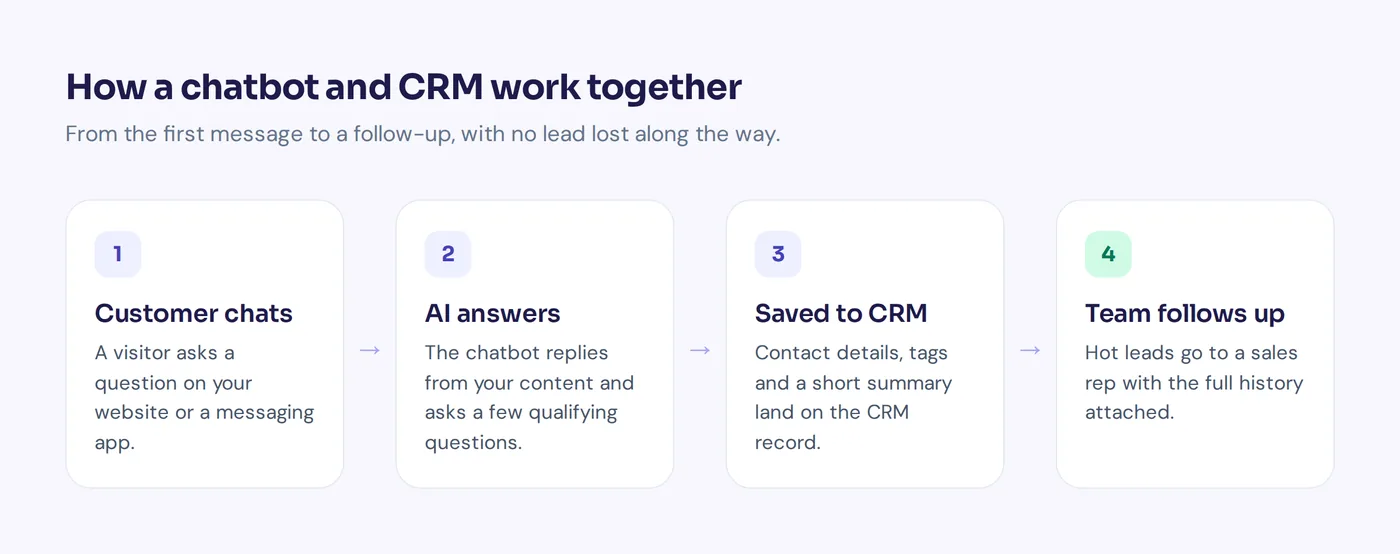
Every chat that collects an email or phone number becomes a contact in your CRM, tagged with where it came from. Your sales team sees it in the morning instead of never.
Faster lead qualification and a shorter sales cycle
A sales chatbot can ask two or three qualifying questions (team size, budget, timeline) in a natural way and score the lead before a person ever looks at it. Sales reps spend their time on hot leads, not on "just browsing", and deals move faster.
Personalized answers for existing customers
If the bot knows the customer is on your annual plan and bought last week, it can skip the sales pitch and help with what they actually need. Personal answers powered by AI and matched to customer needs are the biggest win for customer experience and customer satisfaction.
One shared history
Support, sales and marketing all see every customer interaction in one place. When a person takes over a chat, they don't have to ask "can you tell me your order number again?"
Less manual work
Nobody copies chat details into the CRM by hand anymore. Good chatbot automation handles the boring part and keeps your team on conversations that need a human.
How CRM chatbot integration works
Under the hood, most chatbot-CRM integration setups use one of four methods. You don't need to be a developer to understand them, and knowing which one you use saves a lot of confusion later.
| Method | How it works | Good for | Watch out for |
|---|---|---|---|
| Native integration | The chatbot platform has a built-in connector for your CRM. You log in and pick what to sync. | Popular CRMs like Zoho CRM | Only covers the fields the vendor chose to support |
| Automation tools | Zapier, Make or n8n listen for a chatbot event (new lead, chat closed) and create or update the CRM record. | Almost any CRM, no code | Extra monthly cost, small delays, another tool to maintain |
| Webhooks | The chatbot sends conversation data to a URL your CRM or server listens on. | Custom CRMs, in-house systems | Needs someone who can set up the receiving end |
| Direct API calls | The bot calls your CRM's API during the chat to read or write data in real time. | Looking up a customer mid-chat | Needs API keys and careful permissions |
Most teams end up mixing two of these. You automate lead capture one way and lookups another. A common pattern: a native integration or Zapier for pushing new leads, and a live API lookup so the bot can answer "what is the status of my account?"
Which CRM data should your chatbot read and write?
Don't sync everything. A CRM full of half-empty records and raw transcripts is almost as bad as no CRM at all. Here is a sensible starting list.
Chatbot to CRM
- Name, email and phone number (only what the customer chose to share)
- Source channel: website, WhatsApp, Messenger, Instagram or email
- Lead qualification answers and a lead score
- A short AI summary of each chatbot conversation, not the full transcript
- Tags like "pricing question", "demo request" or "refund"
- Whether the chat was handed to a person, and who took it
CRM to chatbot
- Customer name and language
- Plan, subscription or order history
- Open deals, tickets or appointments
- Account owner, so the bot can route the chat to the right sales rep
Rule of thumb: if no human or automated workflow will ever use a piece of CRM information, don't sync it.
How to integrate an AI chatbot with your CRM system
- Write down the one job you want it to do first. Capturing website leads? Qualifying demo requests? Answering account questions? Start with one.
- Clean up your CRM fields. Decide which properties the chatbot will fill, like lead source and lead status. Create them before you connect anything.
- Pick AI chatbot software with a solid integration with CRM tools. Compare chatbot platforms: check for a native integration first, then Zapier, Make or webhook support.
- Train the bot on your business. An AI chatbot should learn from your website, pricing page and help docs, so its answers match what sales would say.
- Design the lead capture moment. Ask for an email when it helps the customer ("Want me to send you the pricing PDF?"), not as a wall before they can ask anything.
- Map the fields. Chatbot "email" goes to CRM "email", chat channel goes to "lead source", and so on.
- Add identity for logged-in customers. If customers log in to your site or app, pass their verified identity to the chatbot so it can safely look up their records.
- Set handoff rules. Hot lead, angry customer or complex question? Route the chat to a person, and make sure the CRM record shows it.
- Test with real scenarios. Run five fake conversations and check that each one creates or updates the right record, with no duplicates.
- Review weekly for the first month. Look at what landed in the CRM and fix messy fields early.
A lead capture template for your website chatbot
Here is a simple conversation template for a made-up software company. It helps first, then asks for details in a natural way.
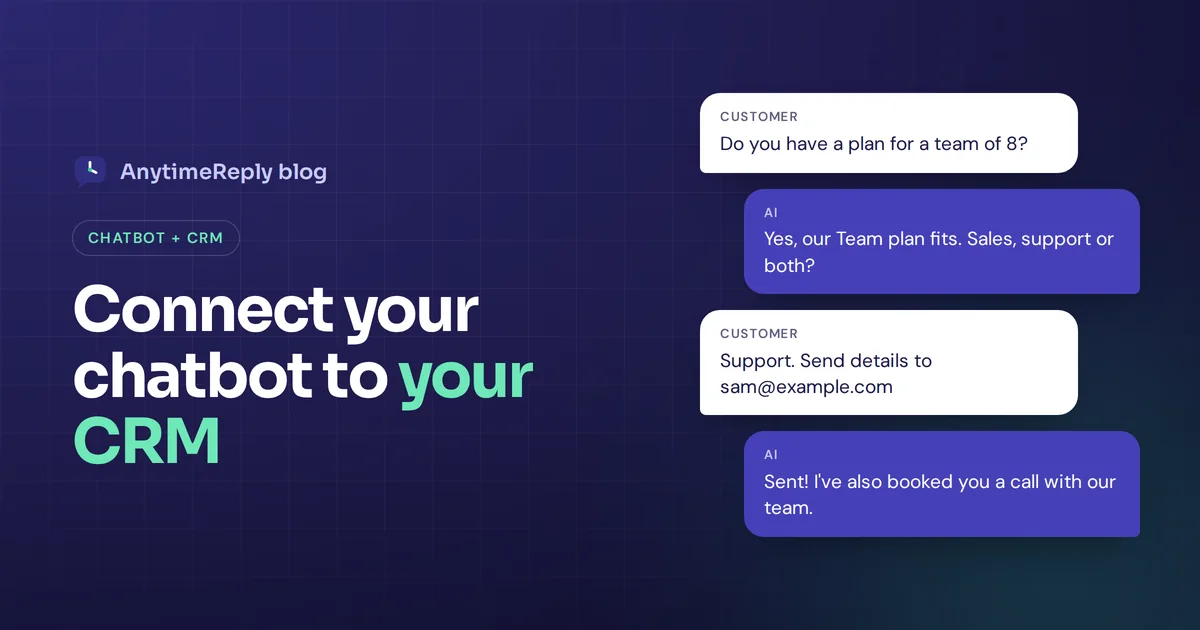
Visitor: Do you have a plan for a team of 8?
Bot: Yes! Our Team plan covers up to 10 people and includes shared reporting. Are you mostly looking for sales, support or both?
Visitor: Support mostly.
Bot: Got it. Want me to send a short comparison of the plans for support teams? Just share your work email.
Visitor: [email protected]
Bot: Sent! Would you like to book a 15-minute call with our team this week?
Behind the scenes, that one chat creates a CRM record with the email, a "team plan, support" tag, the team size and the source channel. If the visitor books a call, the meeting lands in the sales rep's calendar too.
Chatbot and CRM use cases for sales and customer support
Here is how the same idea looks in different businesses.
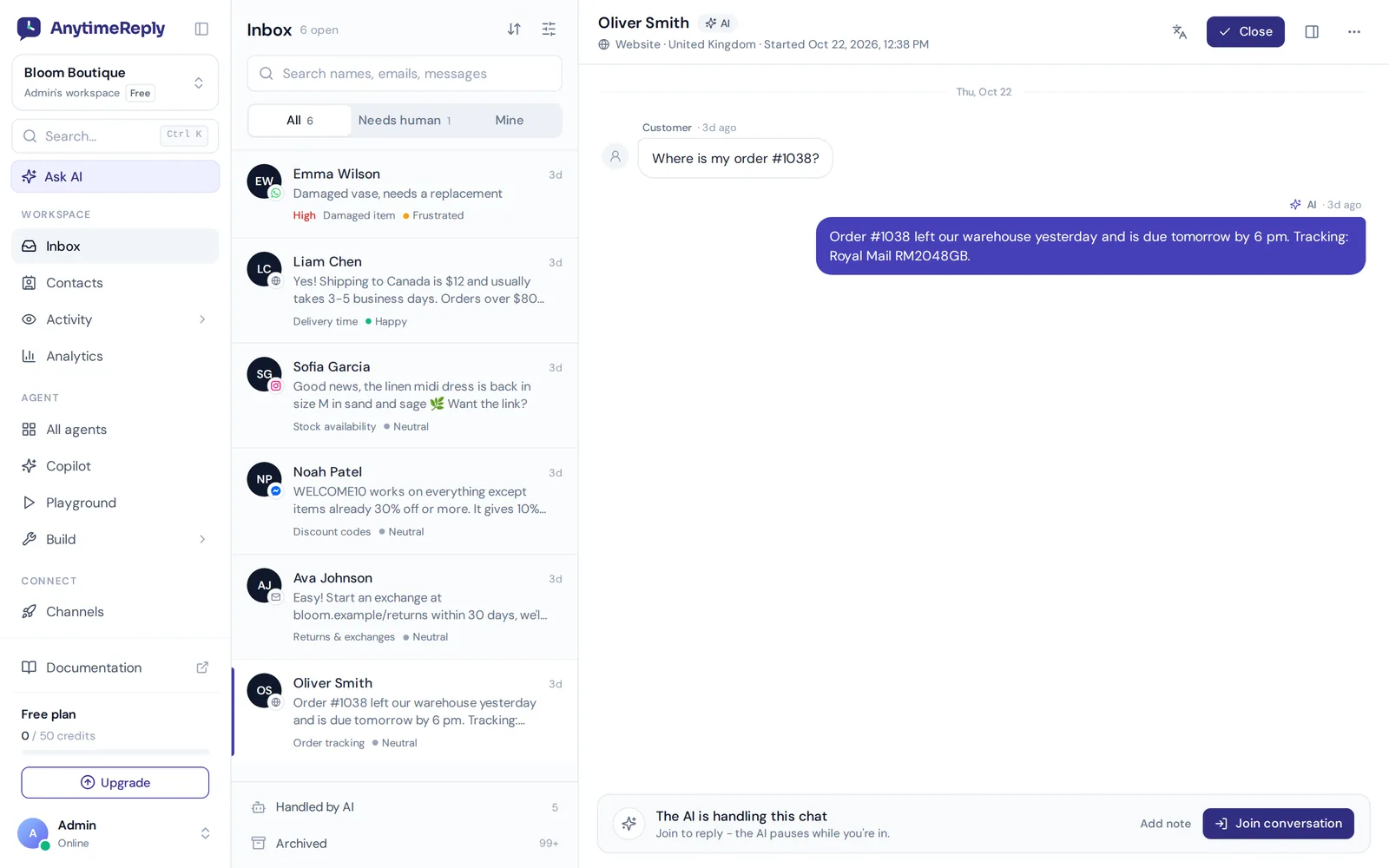
- Online shop: A customer on a messaging app asks "where is my order?". The support chatbot checks the order in the store, replies with the status and logs the conversation on the customer's record. If the parcel is lost, it hands the chat to the team with a summary.
- SaaS company: A visitor asks about team plans. The bot answers from the pricing page, asks about team size, creates a lead with a "team plan" tag and offers to book a demo.
- Agency or service business: The bot asks what service the visitor needs, their budget and timeline, then creates a deal in the right pipeline stage for the account manager.
- Real estate: A buyer asks about two-bedroom flats in a price range. The bot captures their preferences, saves them to the contact record and lets an agent follow up with matching listings.
Each use case starts with the same chatbot functionality: answer, capture, update, hand over.
Common mistakes to avoid
- Duplicate contacts. The same person chats on the website and on a messaging app and becomes two records. Match on email or phone before creating a new contact.
- Asking for contact details too early. A form before the first question kills conversations. Let the bot help first.
- Dumping full transcripts. Nobody reads 40-line transcripts. A three-line summary plus tags is far more useful.
- Letting the bot change records without checks. Reading data is low risk. Changing a subscription or issuing a refund should need a verified customer, a confirmation step and limits.
- No human handoff. A bot that can't pass a hot lead to a salesperson in real time wastes the best leads you get.
- Forgetting privacy. Tell people what you collect, store only what you need and make it easy to delete data.
Built-in CRM chatbots or standalone chatbot integrations?
If your CRM already has a bot, should you just use that? Sometimes yes. Here is how we think about it.
| Chatbot built into your CRM | Standalone chatbot connected to your CRM | |
|---|---|---|
| Setup | Usually simplest, data is already there | Needs a connection, but often quick |
| Channels | Depends on the CRM, often website first | Often covers website, WhatsApp, Messenger, Instagram and more |
| AI answers | Varies a lot by vendor and plan | Usually the main focus of the product |
| Switching CRMs later | You lose the bot too | Keep the bot, reconnect to the new CRM |
| Cost | Sometimes locked to higher CRM tiers | Separate subscription, check both pricing pages |
Our honest take: if you are deep inside one CRM and only need website chat, the built-in option is worth a look. If your customers write on several messaging apps, or you want strong AI answers trained on your own content, a dedicated conversational AI platform is usually the better fit.
How AnytimeReply works as an AI agent with your CRM
AnytimeReply is an AI customer support and sales agent with a built-in helpdesk. Here is how it fits into this kind of setup:
- Contacts in one place. Contacts keeps website visitors, leads, messaging and email customers together, with custom attributes and verified identity (JWT) for logged-in customers.
- CRM and store actions. Actions connect the agent to tools like HubSpot, Shopify, WooCommerce, Stripe, Airtable, Cal.com and Calendly, or any API with an OpenAPI file. Actions run only for verified customers, with confirmation, optional team approval and limits.
- Lead capture flows. Flows let you build lead capture questions and API calls on a visual canvas, and flow steps use no AI credits.
- Automation for any CRM. Zapier, Make, n8n and signed webhooks send data to tools we don't connect to directly.
- Every channel. The same agent answers on your website, WhatsApp, Messenger, Instagram, Telegram, email and Slack, and hands chats to your team in a shared inbox with a summary.
Where it is not the right fit: AnytimeReply is not a CRM itself. It has no deal pipelines or sales forecasting, so you still need a CRM for that. Actions and messaging channels beyond website chat are on paid plans (Hobby and up), see pricing.
Frequently asked questions
What is a CRM chatbot?
It is a chatbot connected to customer relationship management software. It saves leads and conversations to the CRM and uses customer data from the CRM to give more personal answers.
Can I integrate a chatbot with HubSpot?
Yes. Many tools that integrate chatbots connect to HubSpot through a native integration, Zapier, Make or its API. It is also one of the supported action integrations in AnytimeReply.
Do I need coding skills for chatbot CRM integration?
Usually not. Native integrations and tools like Zapier work without code. You only need a developer for custom webhooks or an in-house CRM.
Can ChatGPT create a CRM?
ChatGPT can help you design a simple spreadsheet CRM or write code for one, but it is not a CRM itself. For real customer records, a proper CRM plus a connected AI chat tool works far better.
What is the best AI CRM?
There is no single winner. Salesforce, Zoho CRM and the other big names all add AI features. The best one is the CRM your team will actually keep up to date. Then connect AI chatbots that your customers like using.
Is it safe to let a chatbot access customer data?
It can be, if you set it up carefully: verify the customer's identity, give the bot read access first, require confirmation for changes and choose a vendor that doesn't use your data to train AI models.
Start with one connection
You don't need a giant project. Connect your bot to your CRM for one job, like capturing website leads, check that the data is clean, then add more. If you want an AI agent that answers on every channel and fits your CRM, you can start free, no card needed.
Published 4 November 2026 by AnytimeReply team